How To Access Your Squarespace Template
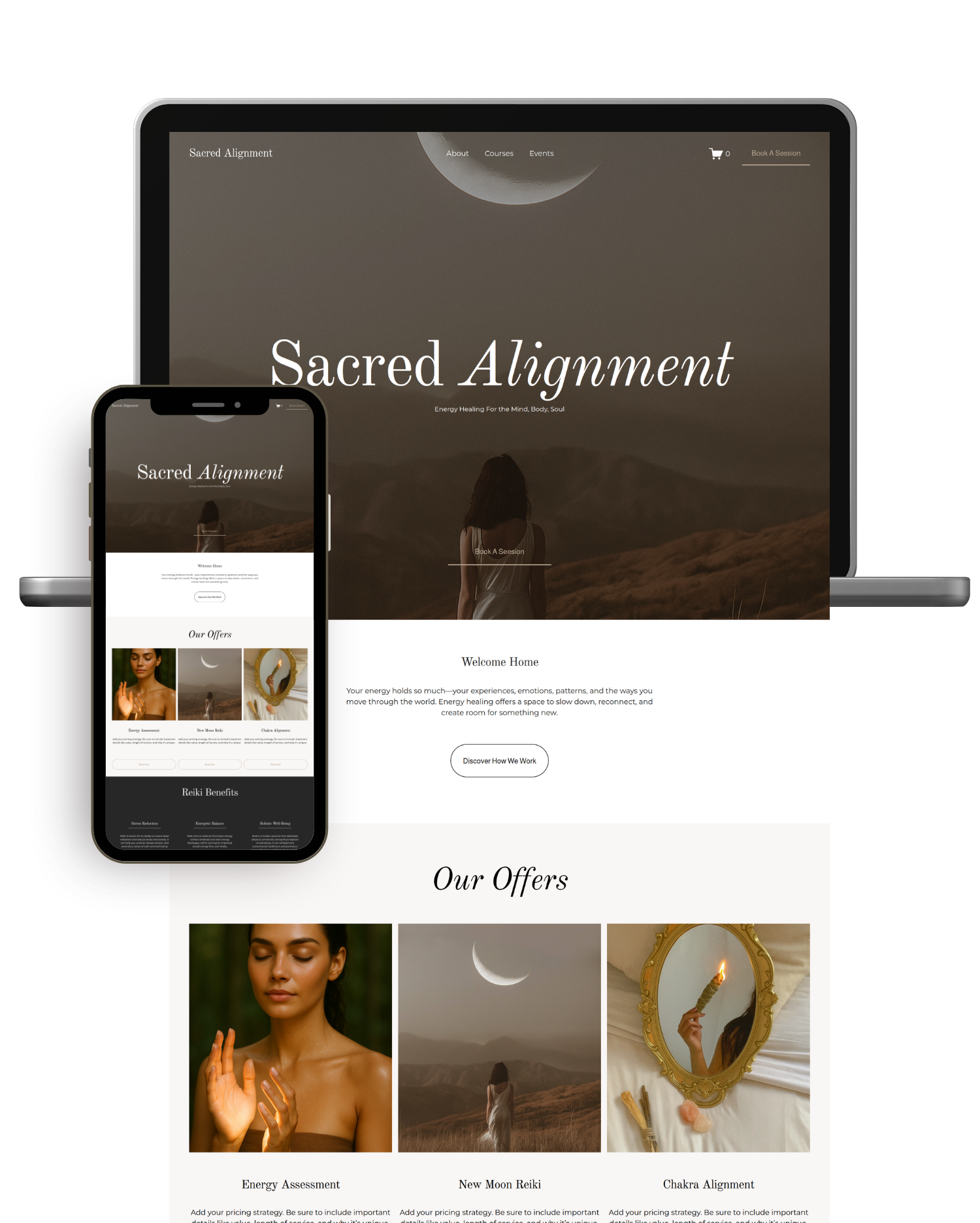
Perhaps you purchased one of my Squarespace templates—or maybe a template from another designer—and now you’re sitting here wondering the impossible question…
How do I even access my new, stunning website template?
In this tutorial, we’ll walk through the process step by step, from accepting your Squarespace invitation to accessing your new website and making sure everything is properly set up. I’ll also answer some of the most frequently asked questions along the way.
By the end of this short tutorial, your beautiful new website will officially be in your hands—and you’ll be ready to start making it your own.
Step One: Accepting The Contributor Invite
Directly after purchasing, you should receive a confirmation and receipt. For one of my designs, you will also receive a PDF full of assets to help with the design portion of your website. From there, your job is essentially done until the seller manually adds you to the template you purchased.
You see, Squarespace is rather advanced up until it comes to transferring designs. In which case, a designer has to transfer the website over one by one per purchase. Which, we are grateful to do because, wow, someone loves our work enough to use it as a means to showcase their business. That is something I don’t take lightly. I do, however, wish Squarespace could help us all out a bit and make templates far easier to share.
Anyways, I digress… the designer (me, hi!) will send you an invite to collaborate on a website design. The invitation will be sent to the email you provided at checkout, and hopefully, the one that is associated with your Squarespace account (this will make the process run a tad smoother).
Open the email entitled, "New Squarespace Contributor Invitation" and accept the collaboration invite.
Step Two : Log Into Your Account
Accepting the collaboration invite will open Squarespace and prompt you to log into your account. If you are already logged in, brilliant! Simply click continue with this email.
Step Three: Check For Ownership
Once you have accepted the collaboration you will be able to edit the site as you choose. And most tutorials end right here. Except for mine…
I highly recommend you check to make sure within the first 72 hour that the designer assigns complete ownership to you. That way you have total control over the website and information. I would not add any billing or personal information until you see that this has occurred.
Again, some designers are flooded with sales and it takes a bit of time to finish transferring the website over. I tend to complete the transfer as soon as I see a client has accepted the invitation to collaborate. The reason being… well easy… so you have absolute privacy!
If you noticed that the designer is still the owner of the website, I’d simply message them and asked if they can complete the transfer. They might have been busy with another project and forgot.
Troubleshooting Links
In an extremely unlikely event where you receive an error message, I found this article from Squarespace to be extremely helpful. Otherwise, I hope this helps and look forward to seeing you in the next tutorial!
