How to Edit Your Showit Template: From Importing to Canvas Settings
Are you brand new to Showit? Perhaps you logged in and immediate thought, “what in the world is all of this?” You’re not alone. While showit has branded itself as “easy to edit”, “drag and drop”, “no coding ever” platform, it’s not the most intuitve to understand. However, a BIG however, once you have master the basics, it’s incredible what you can create.
In this article, we will go over how to import your new template into Showit, go over the differences between canvases and site canvases, and review the righthand sidebar where you will edit most of the settings for your template.
Before we begin, here is a month free of showit!
1. Import the Template
If you happened to purchase a showit template (PSSSTT… have you seen our beautiful showit templates yet? They took months to design, so you can launch in a day), you will receive a long-winded keycode.
With that keycode in hand:
Log into your showit.com account.
Enter the Design App (smack dab in the middle of the page)
Find the ‘Add to Library’ Button.
From there add the keycode.
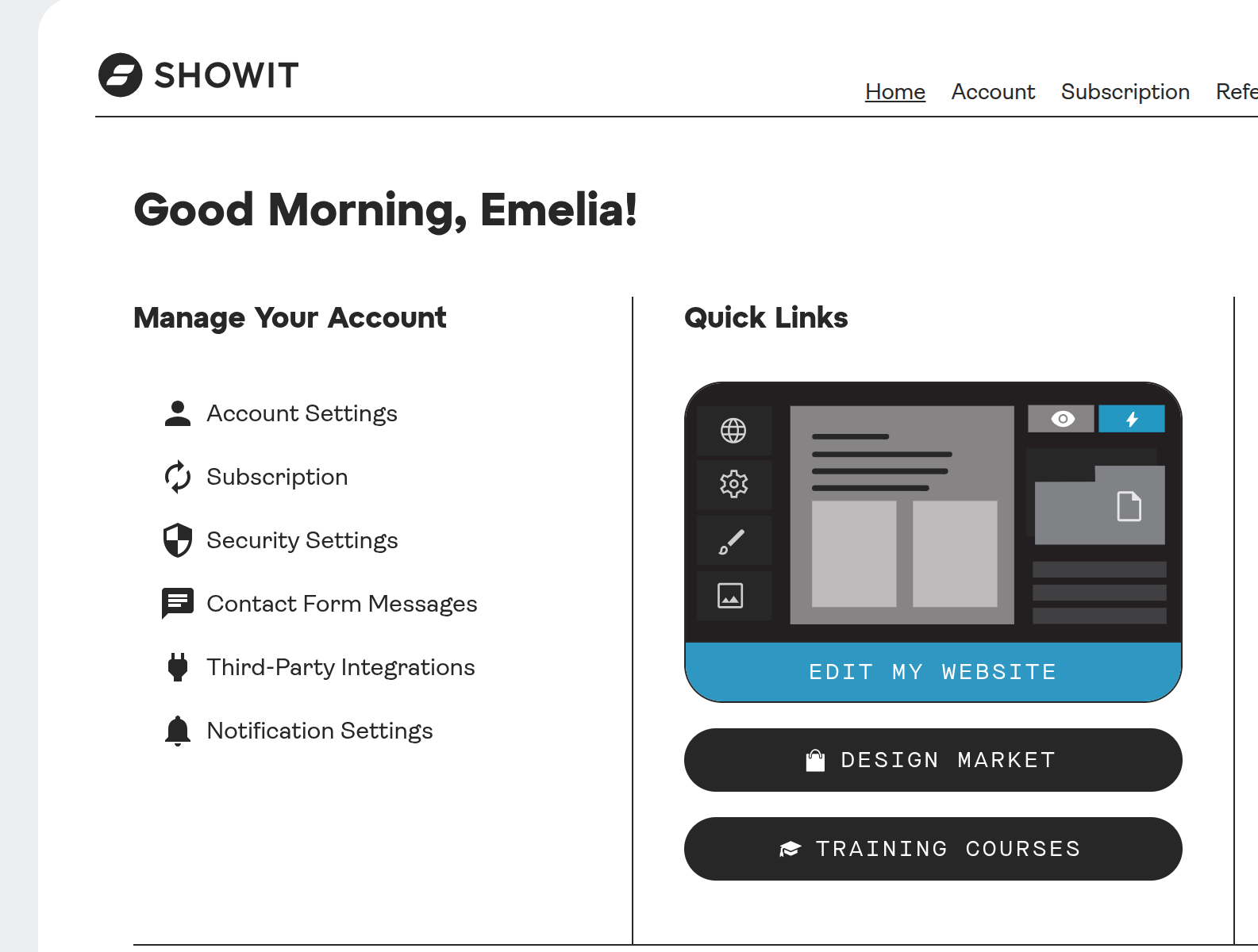
The Design App has “edit my website” directly underneath
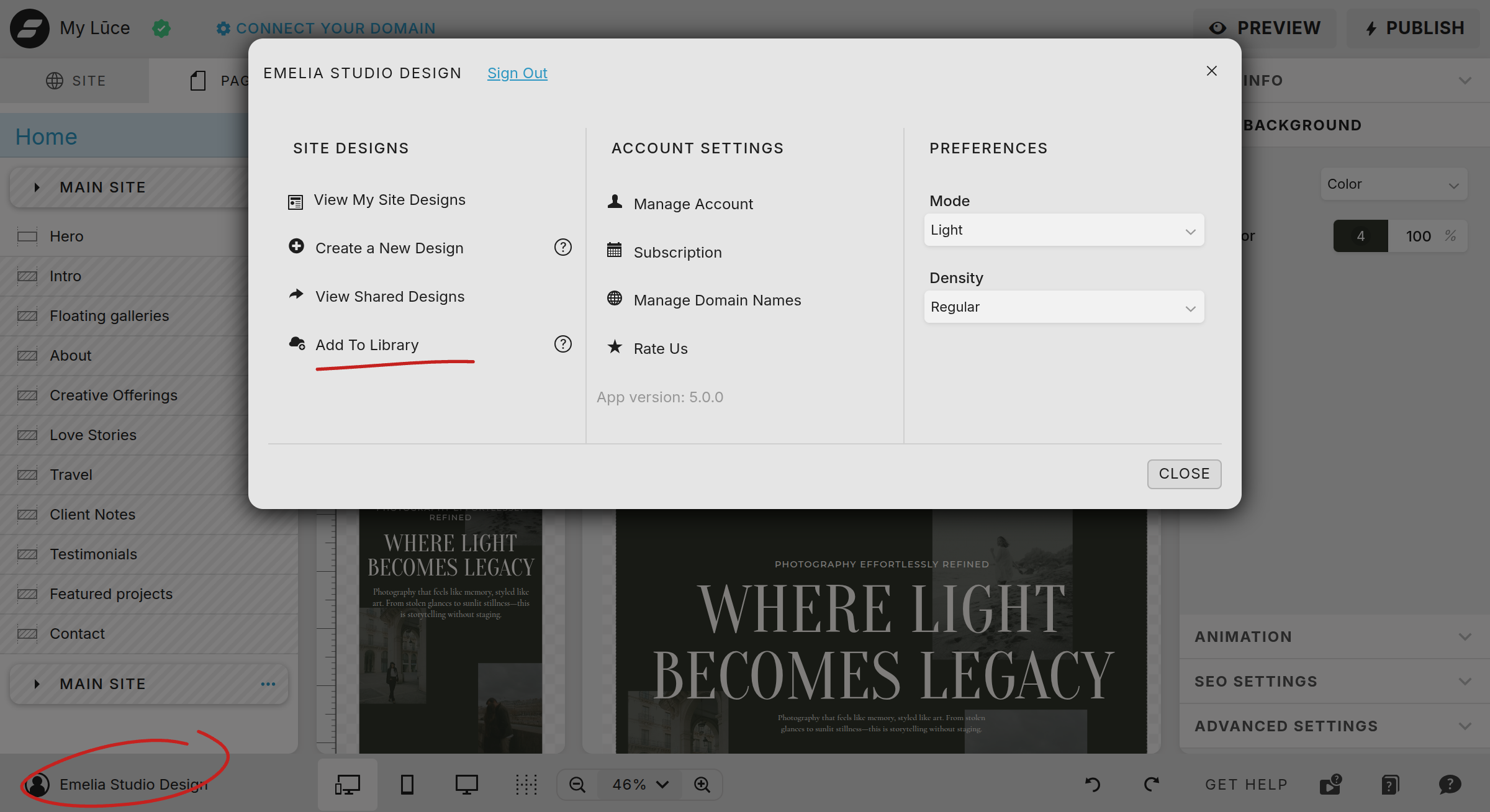
Click your account name at the button (circled in red). Then click add to library (underlined in red)
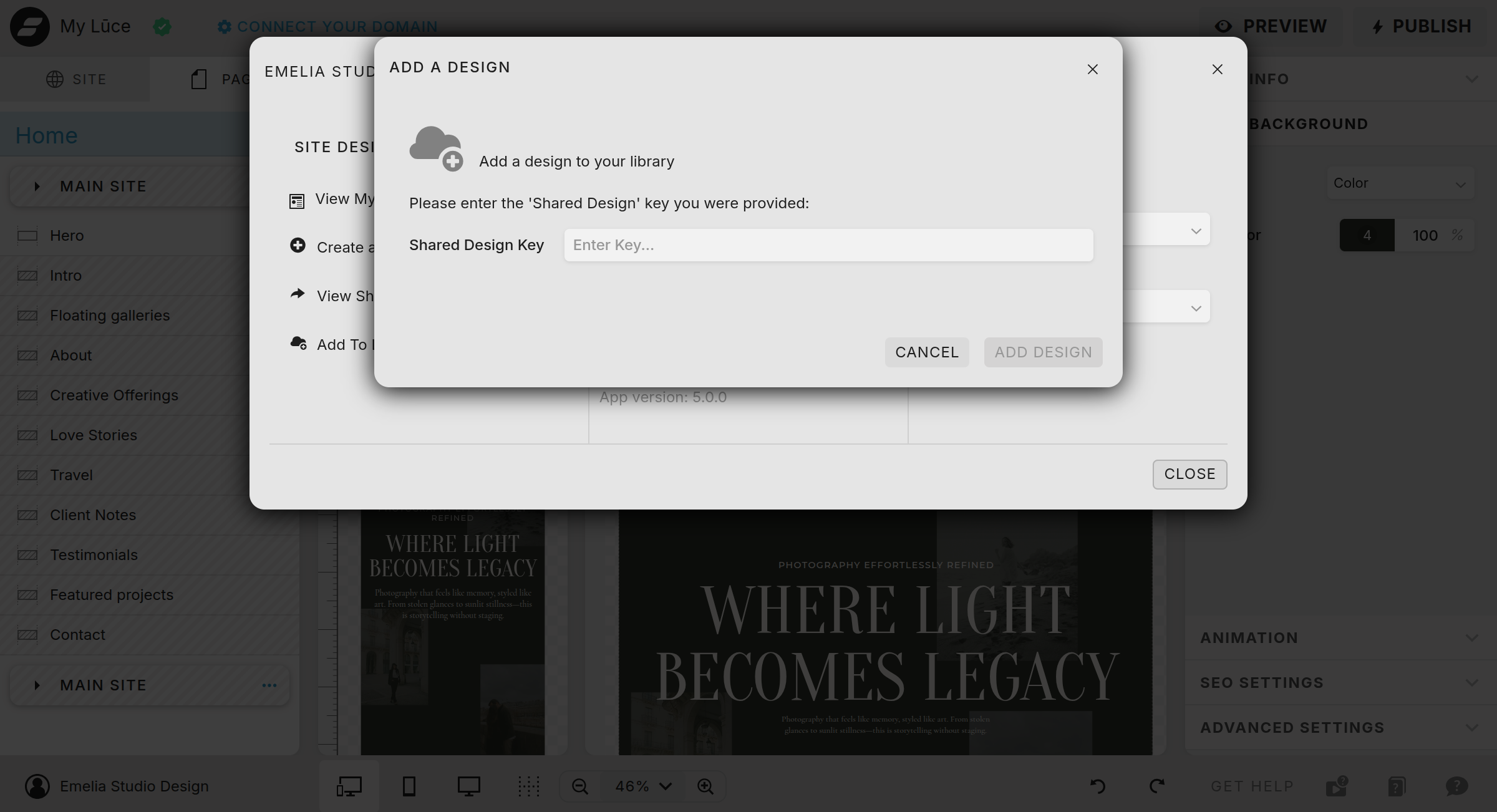
The last step is adding your keycode into the space provided!
2. Get Understadning the Editor and Right Sidebar
Now you have your template uploaded, let’s review the editor. Moving through the basics before even touching anything on your screen. Let’s first focus on the left hand side bar.
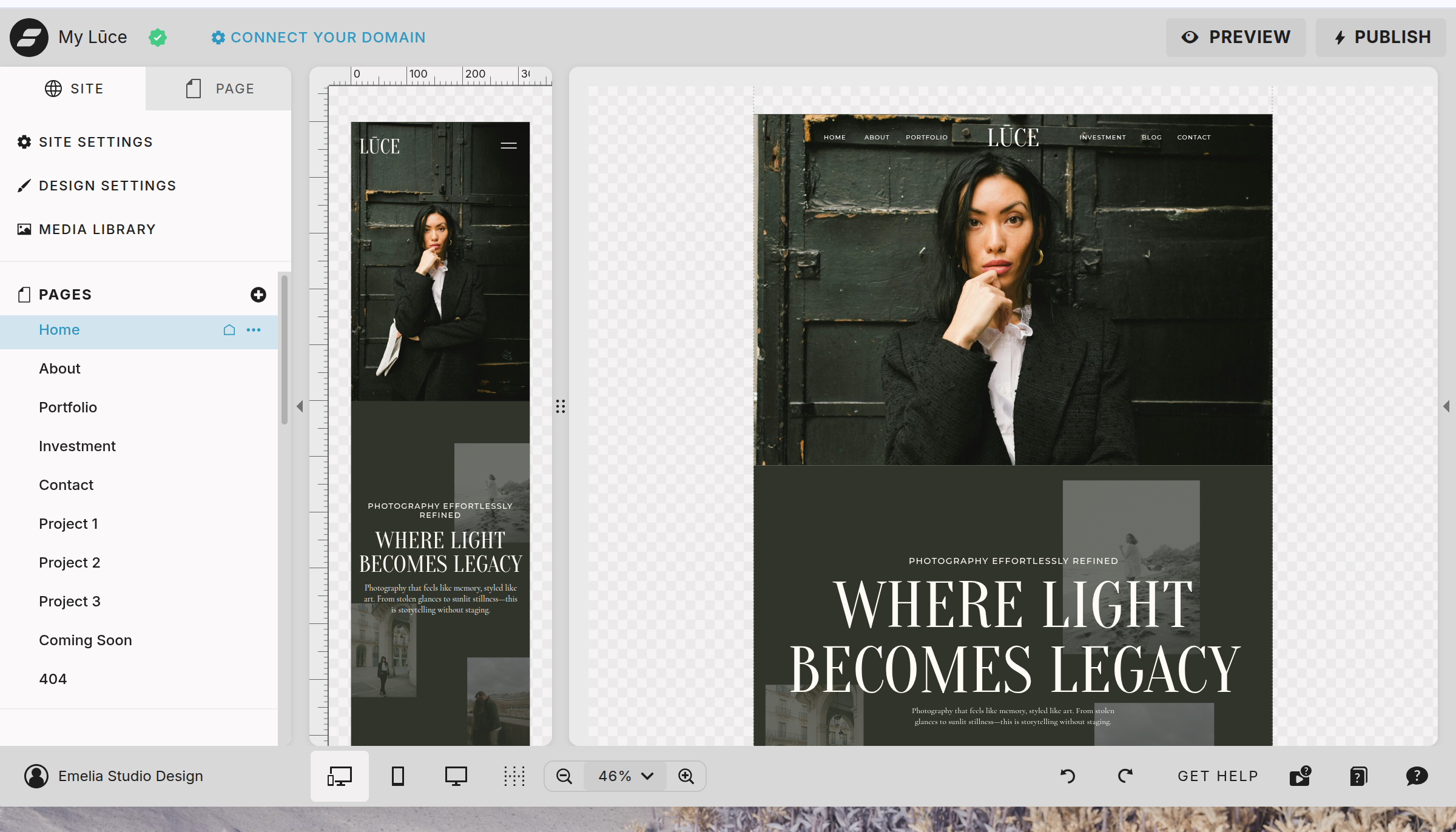
The Left Hand Side Bar
Site Settings
Design Settings
Media Library
Pages
Blog Templates
Site Canvases
Site Settings
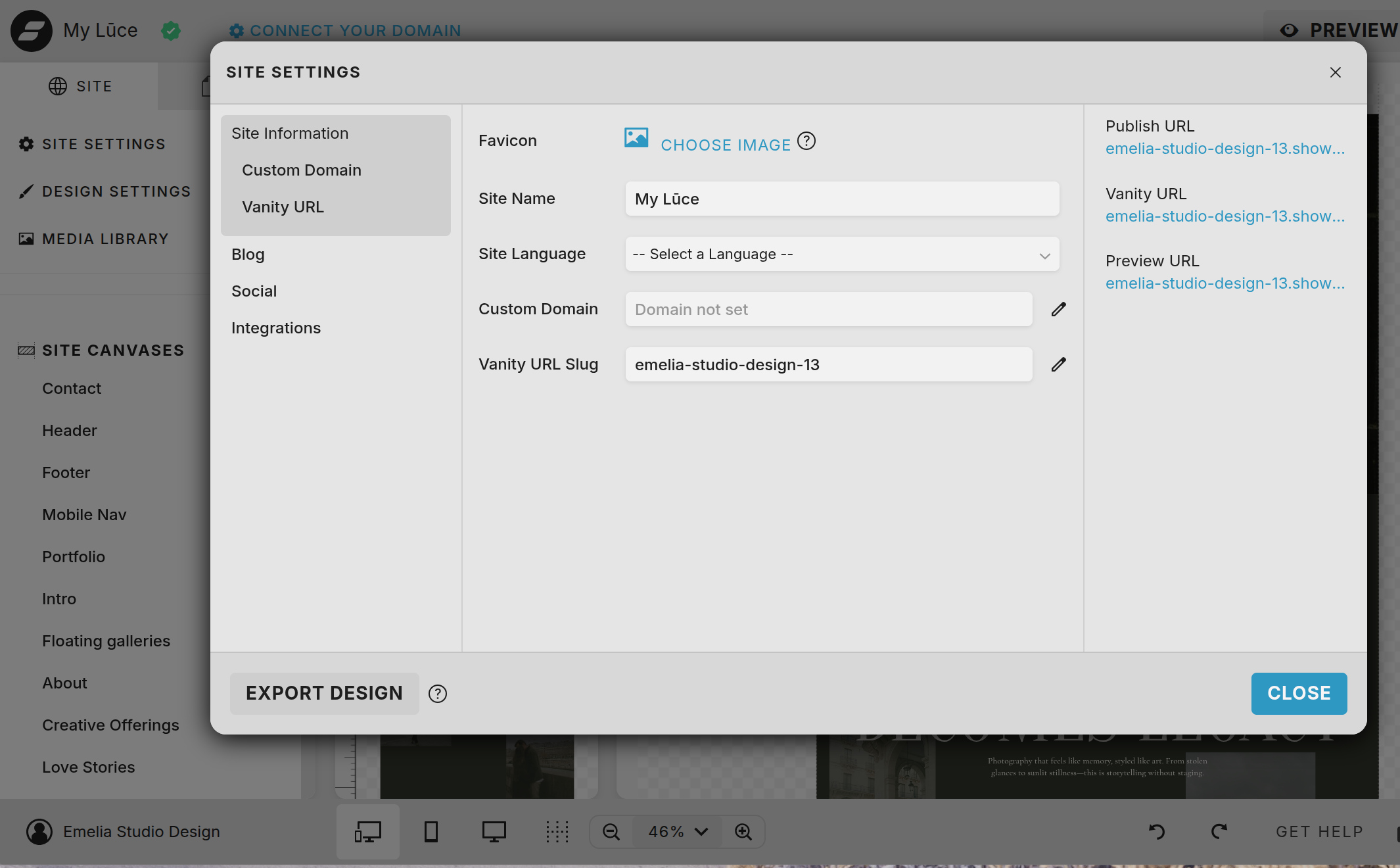
You’ll Find: Domain, Analytics, Socials, Blog
The site setting is the panel where you can connect your domain, select your site language, edit the vanity URL slug.
It is also where you add your social media links so they appear throughout your website.
You can additionally set up your analytics under integration.
Design Settings
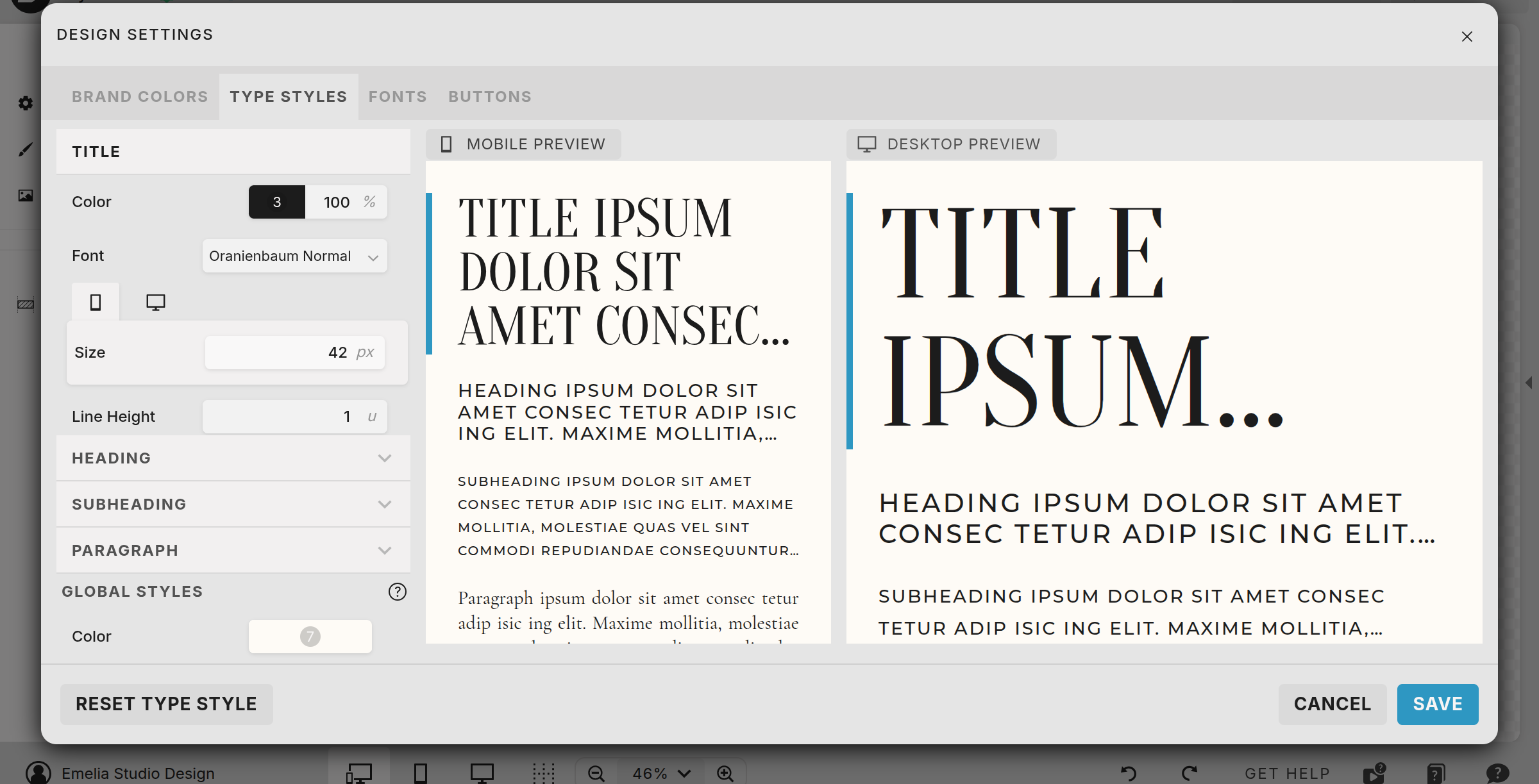
You’ll Find: Brand Colors, Type Styles, Fonts, and Buttons
This is your main controller for the colors, fonts, sizing, and buttons across your website. I highly recommend taking time to adjust these settings. It will save a ton of time in the long run.
Media Library
The media library is exactly what it sounds, the place where all of your images and logos live. I suggest uploading all your files first and organize them into files. That way when it comes to adding them into your website it is ready to go.
Pages
Under the pages section you will see each page that the template contains. You can easily add, duplicate, or delete a page under this tab. Simply click the three dots alongside the page you want to edit in order to find the options: rename, duplicate, delete.
Blog Templates
If your subscription contains a blog, you will find the blog home page, full page, and other blogging templates here!
Site Canvases
This is another important section to understand. Any canvas across your website can be converted into a site canvas. What that does is allow you to add the canvas across multiple pages. For instance your header and footer are both site canvases. You can create a newsletter sign-up as a site canvas. This features saves countless hours of work!
3. Editing Your Page and Canvas 101
As we briefly mentioned in the last section, a page is a destination on your website, such as Home, About, or Contact. A canvas is a section within a page. A page might contain a header canvas, hero canvas, content canvases, and a footer canvas.
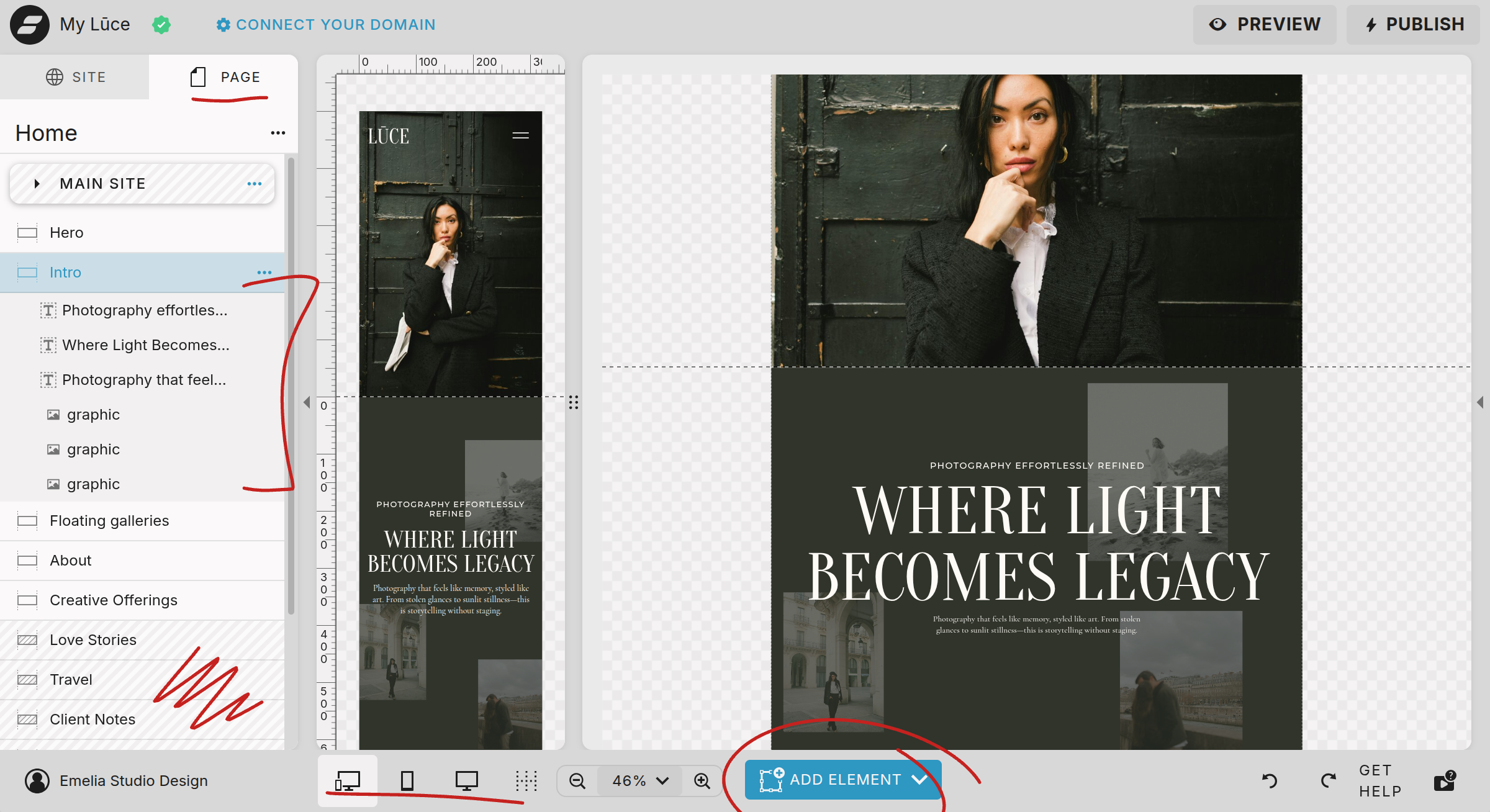
To edit a page or canvas:
Select the page you wish to edit.
Then select the Page tab.
Select the canvas you wish to edit.
You will see all the elements listed in the canvas, the order it is listed is the layering as well.
The grey canvases (where I squiggled in red) are site canvases. When you edit these, you will leave the page you are working on and enter the site canvas editor.
At the bottom of the screen you can select what view mode to work it: both mobile and desktop, just mobile, or just desktop.
The add element feature circled in red allows you to add text, shapes, videos, or photos to your canvas.
To duplicate, delete, or rename an element, select the three dots. You can also hide an element in either desktop or mobile when clicking the icon to the left of the element. This can also be applied to an entire canvas when you select the three dots to the right of the entire canvas.
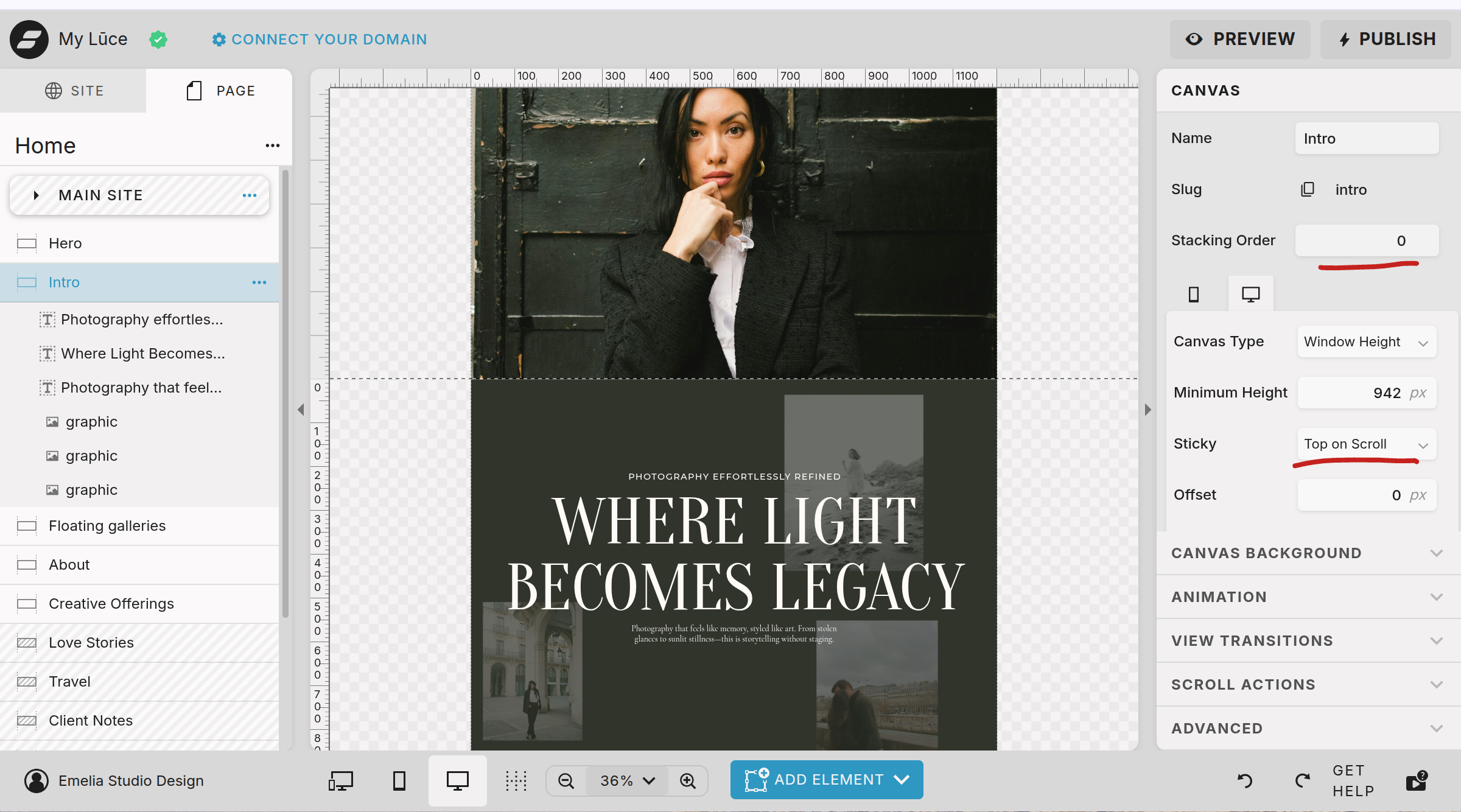
Let’s now move to the right side panel. The initial view is of the entire canvas setting instead of a single element. You will find the height setting, the slug, the stacking order, animation, canvas background, and more settings. Honestly, the options can feel overwhelming.
Here is a basic rundown of what is important to note:
Your Canva name and slug will play a role in your SEO, feel free to edit to include keywords
Stacking order is very important for how the website scrolls. If you want to overlap, adjust the stacking numbers. I’ll cover a whole tutorial on that, but for now if you have issues with your site scrolling properly, make sure the stacking numbers make sense.
Canvas type and height will adjust how big the particular canvas will appear in your window. A standard is window height, meaning it takes up the whole screen.
Sticky is a feature for when you want to get a bit fancy and have the canvas stick while another canvas slides over it. Again, don’t worry to much about is right now unless your website isn’t scrolling properly and then make sure these settings are left blank.
Canvas background allows you to adjust the color of the background or add an image or video as the background.
Animation can be set for each canvas to make it move. I don’t recommend much animation as it might slow the site and reduce your SEO rating.
The rest are settings that are rarely used, but feel free to tap into each and play around.
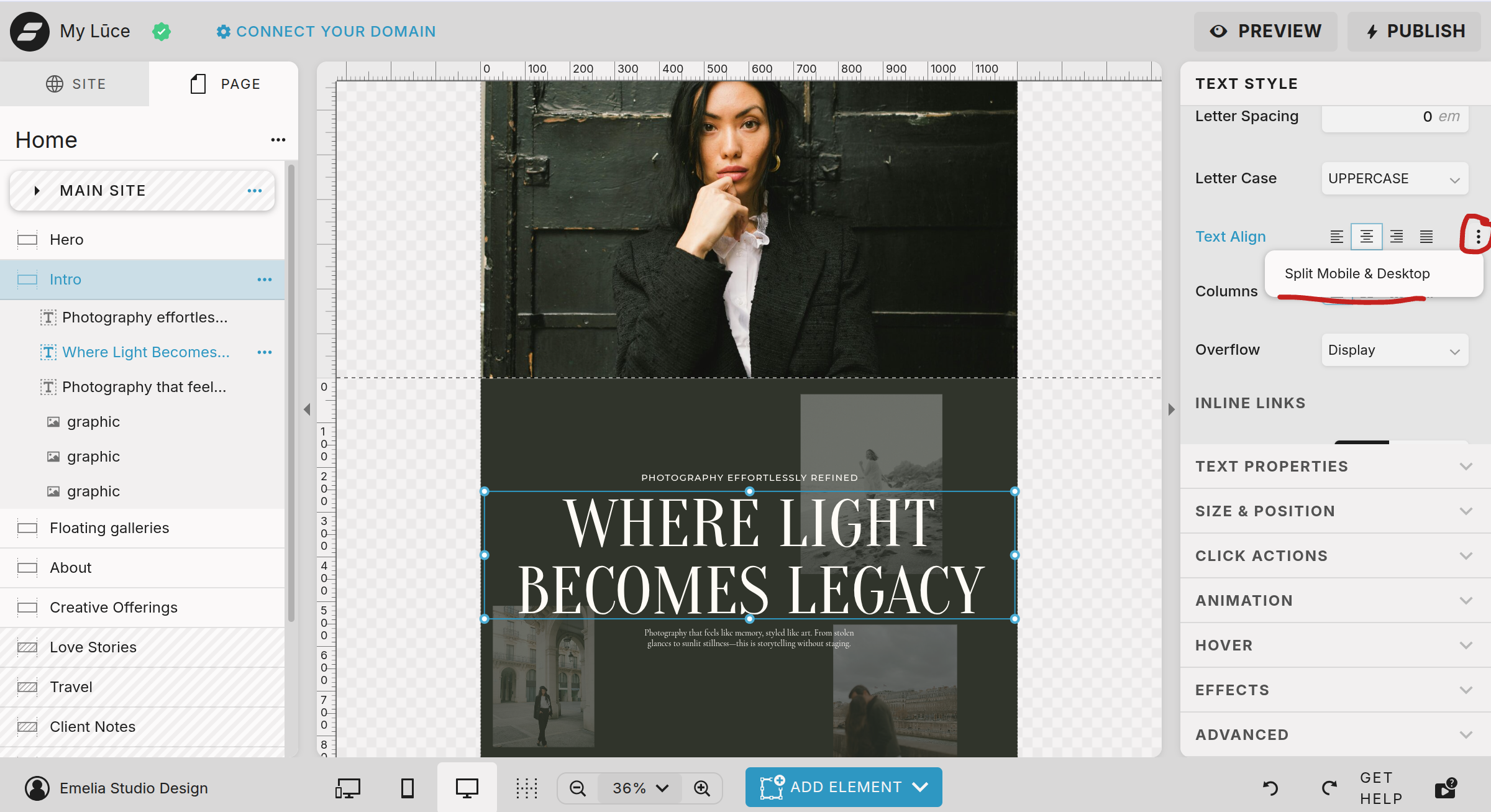
Once you select an element within the canvas you will see a whole new panel of settings that can be adjusted. Again, this can start to feel overwhelming so let’s go over the basics.
For text, you can manually adjust the settings if you want something different from the site design.
For all elements, you can adjust the position of the element, create an animation, or click action in this panel
Hover is a fun tool to use if it is a clickable element.
The main feature I think is the most important is the ability to split the setting so you can adjust the desktop and mobile seperately. You can do this by clicking the three buttons on the right and select split mobile and desktop.
As you are starting out, I wouldn’t try to get too fancy with the settings.
There you have it, you just went through the most important elements and settings for your showit website. If you did purchase one of my templates, most of the design elements, click action, and spacing is designed for you. All you truly need to do is swap out text and images to make it your own.
