Course Pages
IN THIS LESSON
Let’s go over your course content
The course content is where you’ll place the videos, information, and workbooks for the course. The course can be broken into chapters and then further more into lessons.
This tutorial will share how to edit the course content settings, how to add chapters and lessons, and how to add content into each section,
Editing Content Settings
Before we add course information, let’s quickly review how to adjust content settings, add new chapters, change chapter titles, and add lessons.
Adding Chapters and Lessons
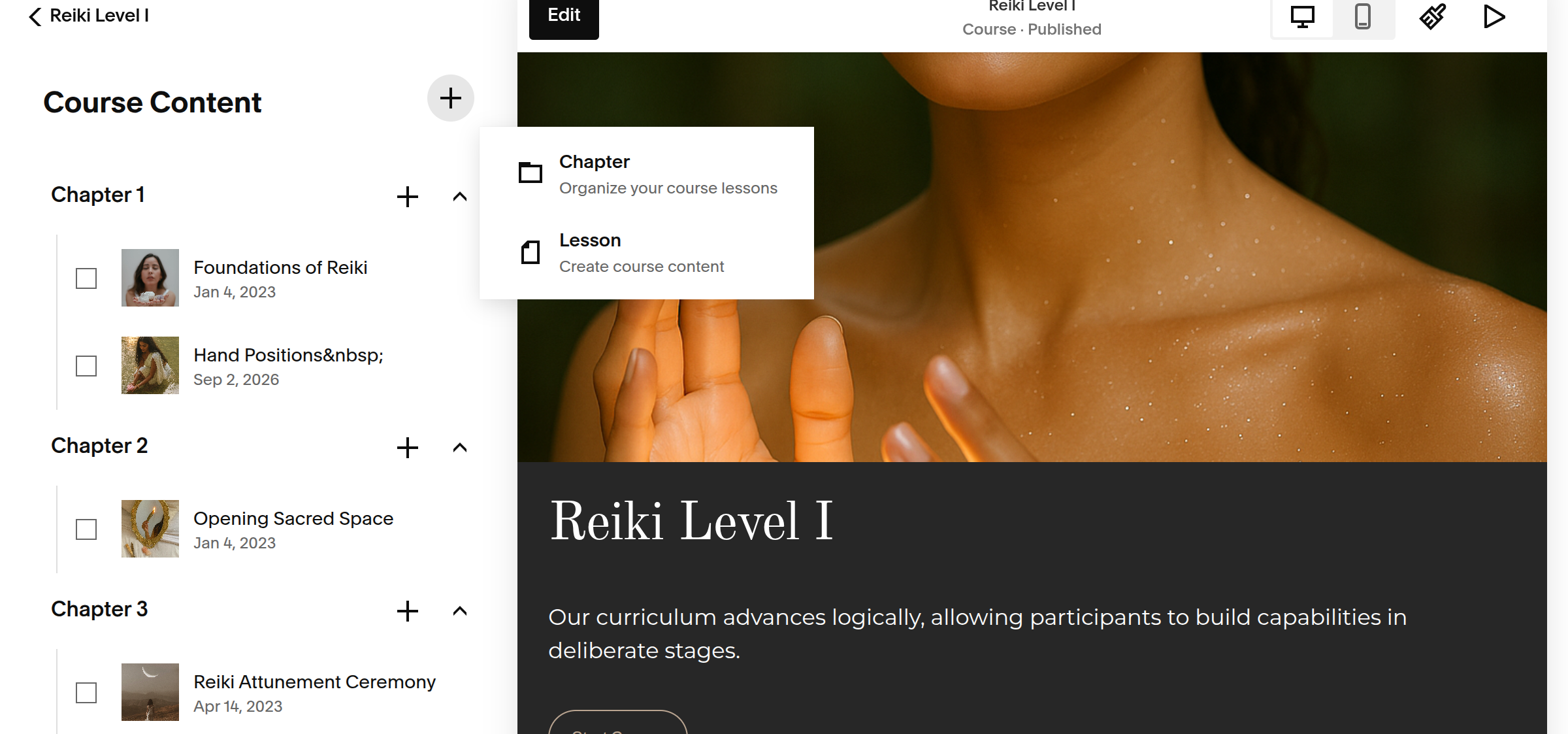
At the very top of the course content, you will find a + button. This will allow you to add Chapters & Lessons. The + by each chapter will add a new lesson to that specific chapter. You can drag and drop chapters and lessons if you need to rearrange anything!
Changing Chapter Titles
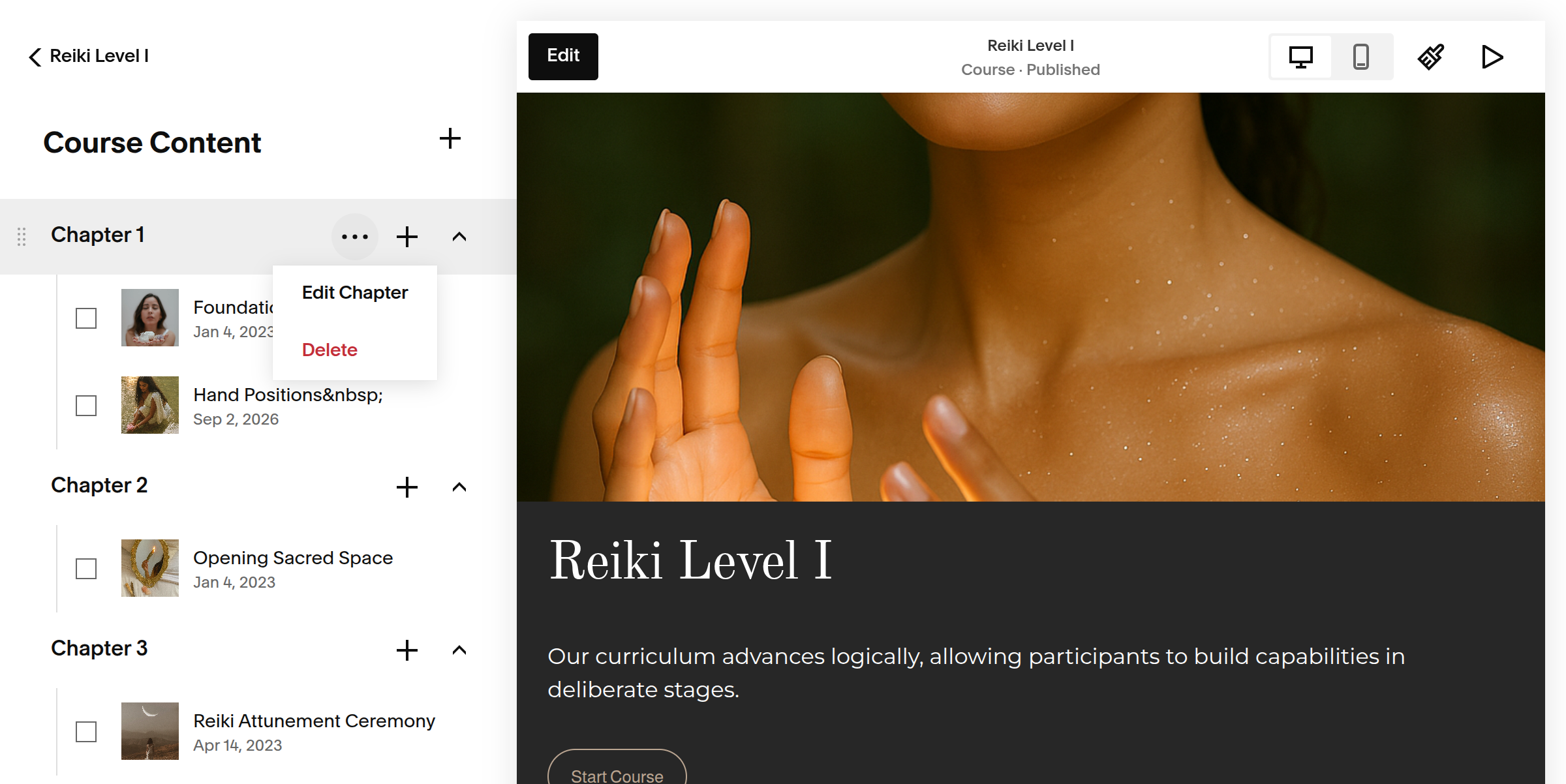
If you want to name your chapters, you can select the three dots beside the chapter and then click edit chapter. From there you will see a blank space to add your title.
Editing Lesson Settings
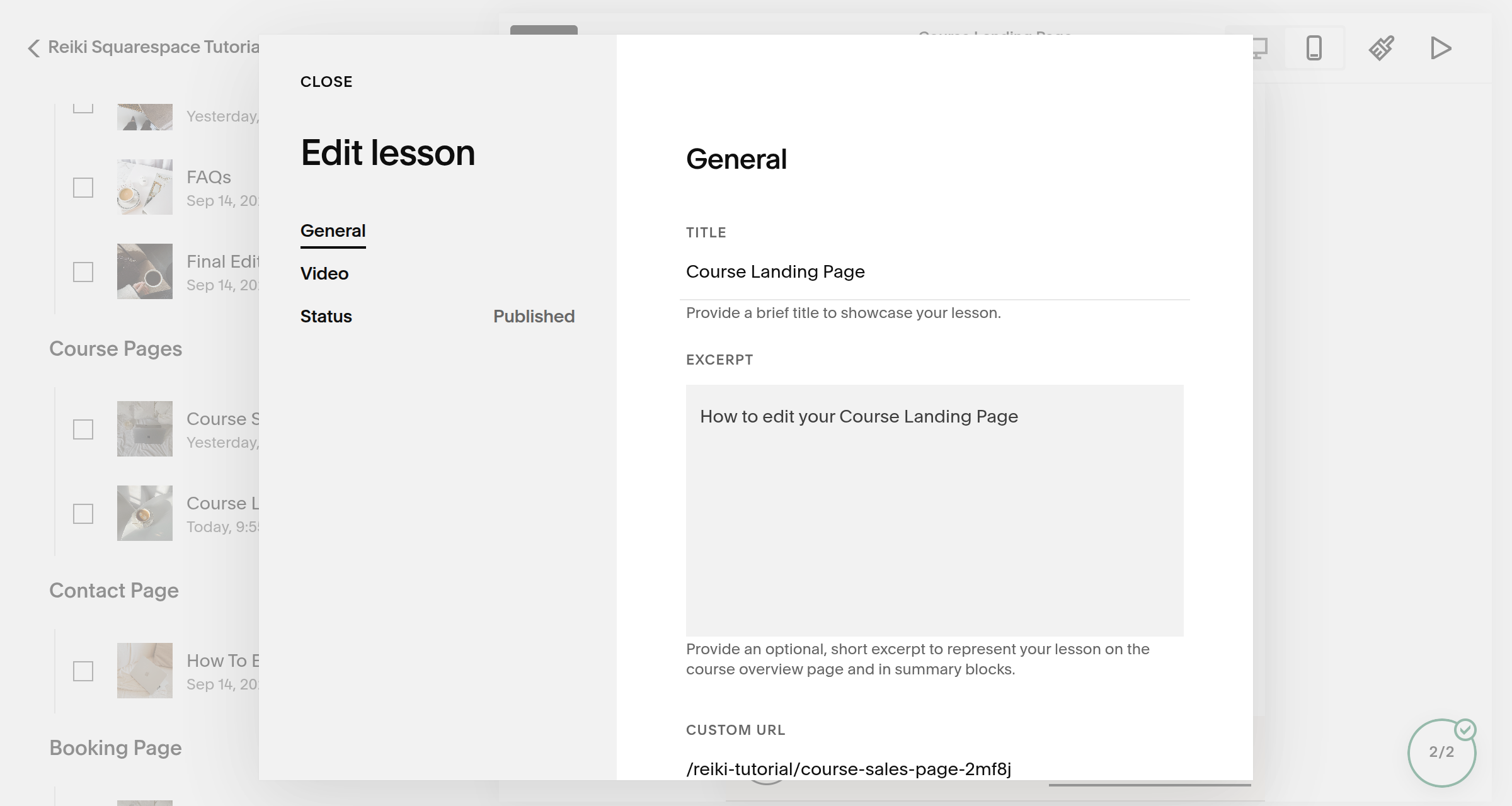
Similar to editing chapter title, you will find three dots alongside the lessons. Click those three dots and then click edit lesson.
From there you will find important sections to edit the backside of the lesson. You can change the title, the excerpt, and if you scroll further down, you can change the URL and Image. Most of this information is exported into the course landing page.
Adding Content
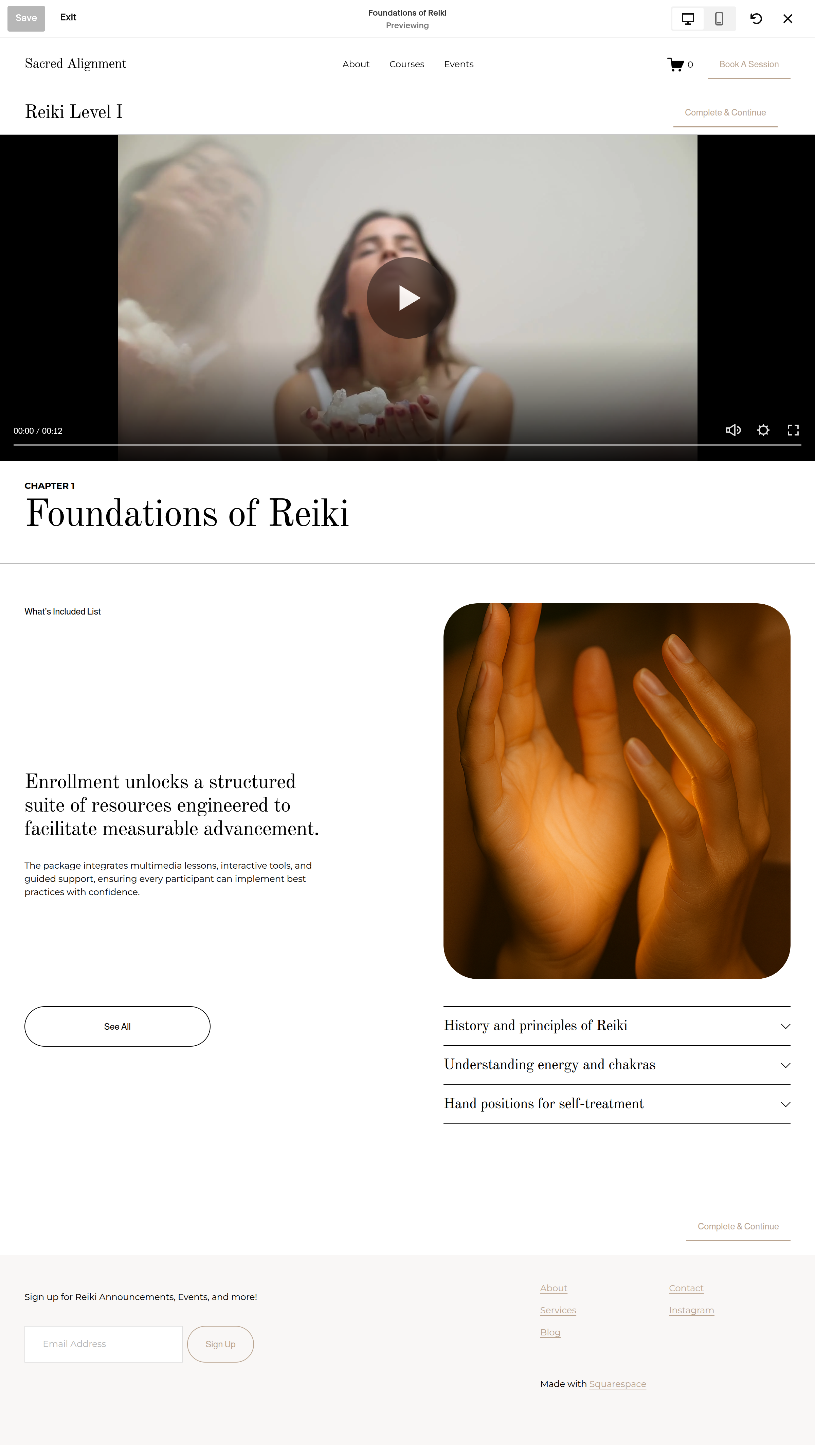
The most important part is adding the actual course content! Do this by selecting a lesson and click edit
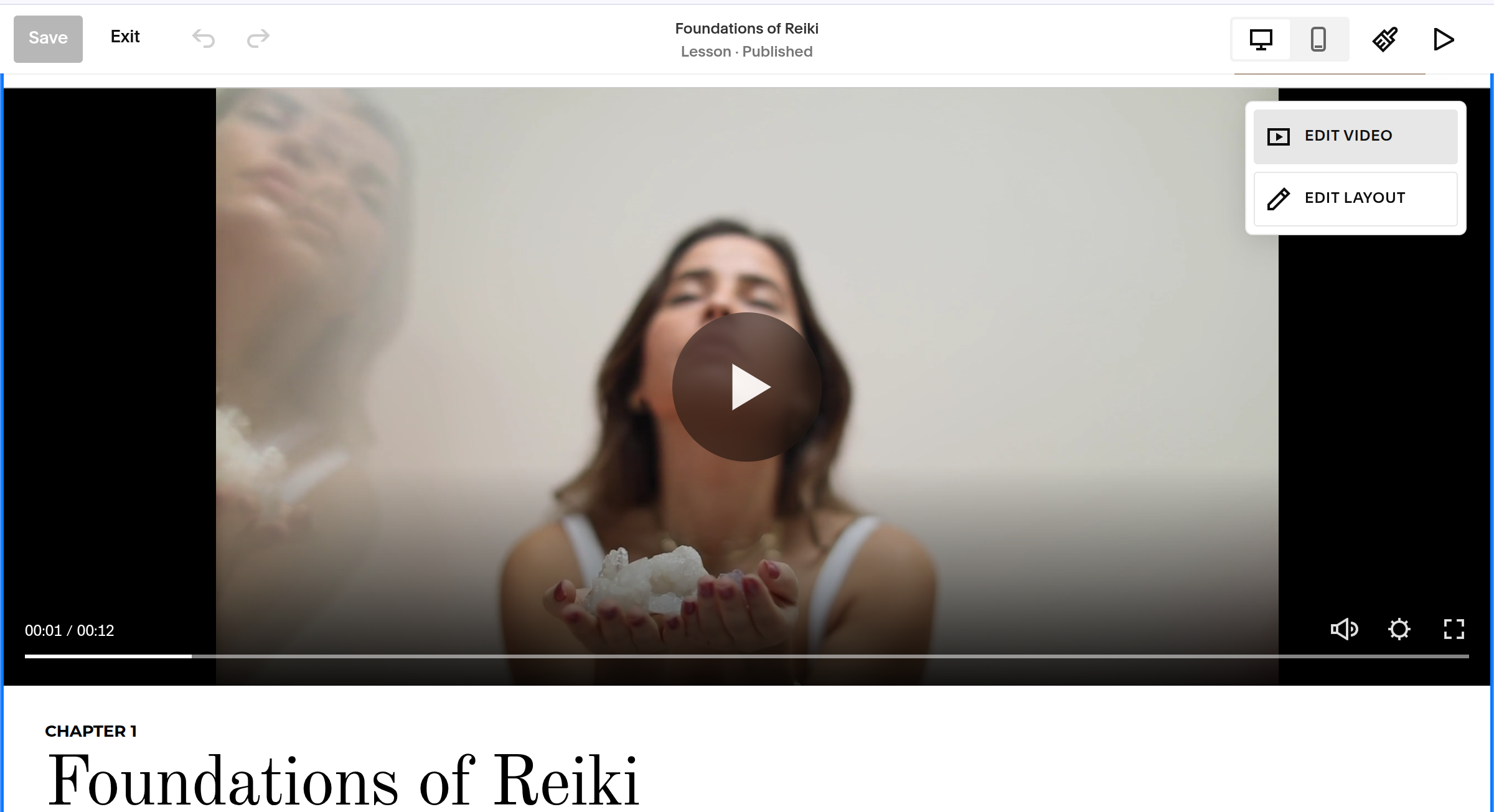
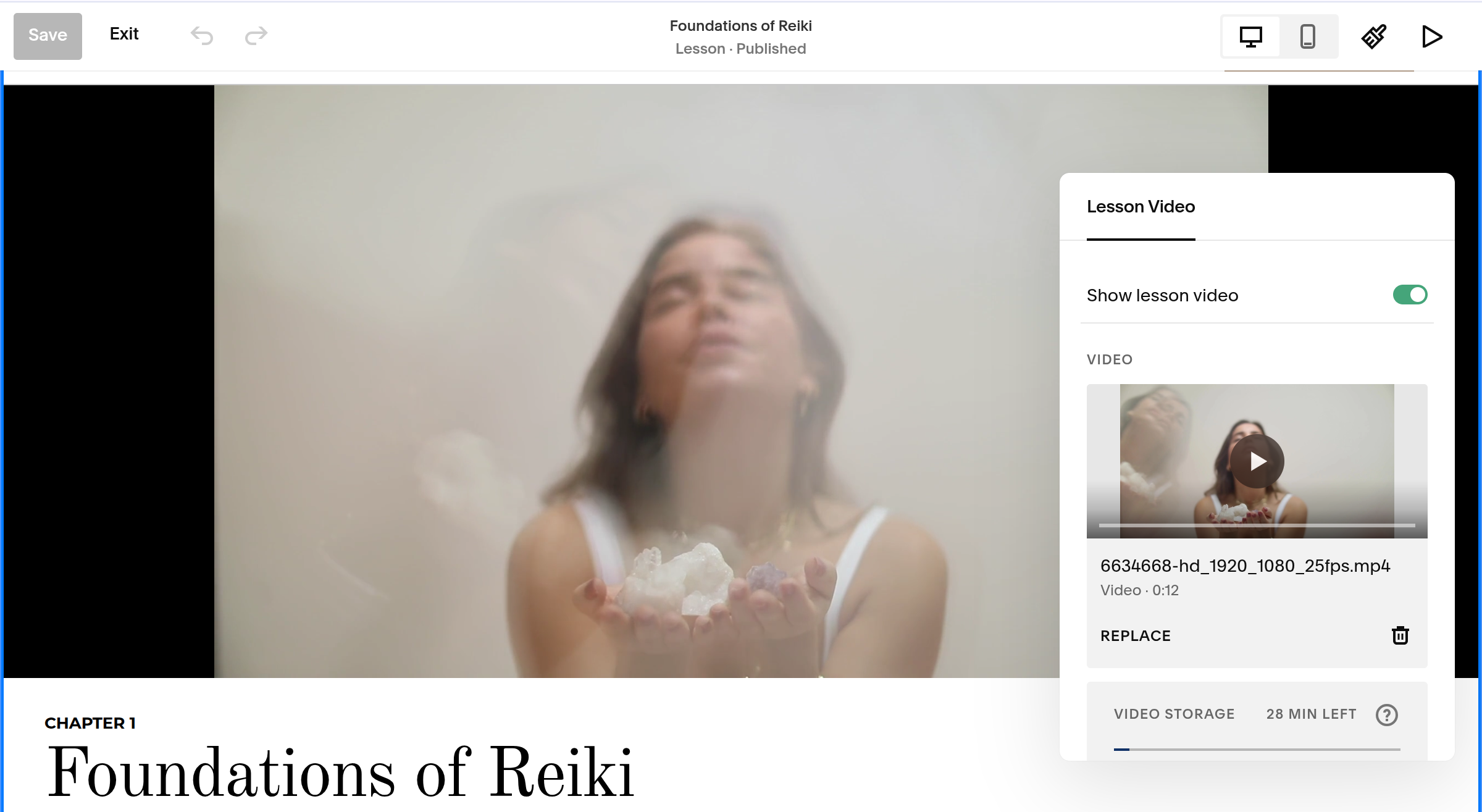
Step 1: Add or remove the video
If your course includes videos, simple upload and replace the video already in the lesson plan.
If your course does not includes videos, simply click the video, click edit and toggle off the video setting.
Chapter and Title
The next section is your chapter and lesson title. Feel free to edit the information here or in the settings mentioned above!
The block after is a brief summary of what the video and lesson. You can change this to make it work with your material.
Step 1: Edit the Heading
Replace the main heading with any saying you wish.
Step 2: Replace the Image
Click on the image and upload one of your own photographs.
Step 3: Edit The Subheading & Description
Replace the placeholder text with a short title and description of your service.
Step 4: Edit The Button
Feel free to link to a YouTube video if you rather upload the videos on a different platform.
Step 5: Edit The Accordion
If you have additional information to review, this is the perfect place! Click on the accordion to add in new titles and descriptions.
Add or Delete
As with any part of this template, feel free to add more sections or delete any element that doesn’t below.