Booking Page
IN THIS LESSON
Let’s go over your booking page
If your business offers appointments, memberships, or other ways for clients to work with you, this page is where you can bring everything together in one place.
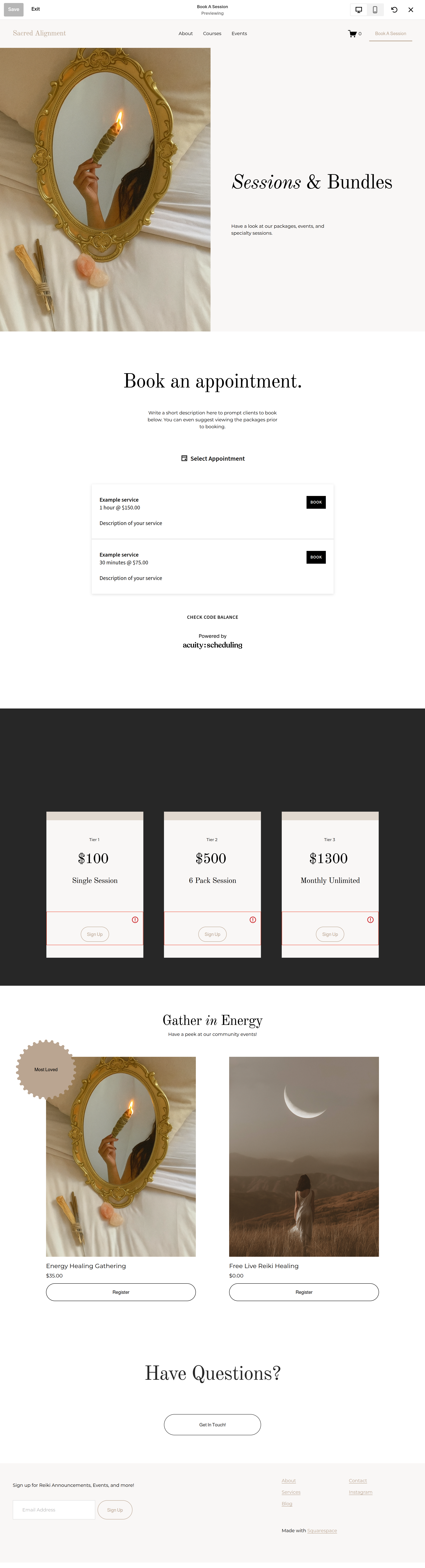
This template includes several different sections designed to guide visitors toward booking an appointment, learning more about your events, and exploring your membership options.
There are also two features on this page that have their own setup processes: Acuity Scheduling and monthly memberships. We'll have separate tutorials dedicated to setting up each of these, so I'll leave those steps out of this tutorial and link you to them when you're ready.
For now, let's focus on customizing the page itself.
Replace the Hero Image & Intro
The first section of the page uses a large image and an Intro to welcome guests in.This is one of the first things your visitors will see, so start by replacing the template image with one that fits your brand.
Click edit the image.
Click replace.
Next click on the text blocks to change.
Customize Your Booking Section
Next, you'll find the Book an Appointment section.
Start by replacing the heading with your own wording. You might keep it simple with Book an Appointment.
Or make it feel a little more personal:
Let's Get You Booked
Ready to Get Started?
Your Next Appointment Starts Here
Whatever fits your brand.
Next is your Acuity or another type of booking system. I’ve created an entire article on how to setup booking (linked below) but for now, feel free to arrange the placement. You can drag it to the side and add an image, make it smaller, or leave it as is!
Customize Your Membership Section
Next, you'll find the Membership Options section.
This is where visitors can learn about your monthly membership offerings.
You'll want to replace the template membership names, descriptions, pricing, and other information with your own.
Think about this section as a quick introduction to your membership options rather than an opportunity to explain every tiny detail.
I’ve created an in-depth tutorial on how to setup your monthly subscriptions, which can be accessed below.
Gather In Energy
The next section is showcasing two of your events.
Start by replacing the title and subtitle.
Then click into each event to select the ones you wish to showcase. You can also adjust the appearance if you wish.
Lastly the badge is a simple shape that can be edited by clicking directly on it. The text on top is a textbox that can be edited as well!
Get in Touch
Near the bottom of the page, you'll a simple call to action sending your clients to your contact page if they have a question. Feel free to change this by clicking into each element to edit.