Course Pages
IN THIS LESSON
Let’s go over your course landing page
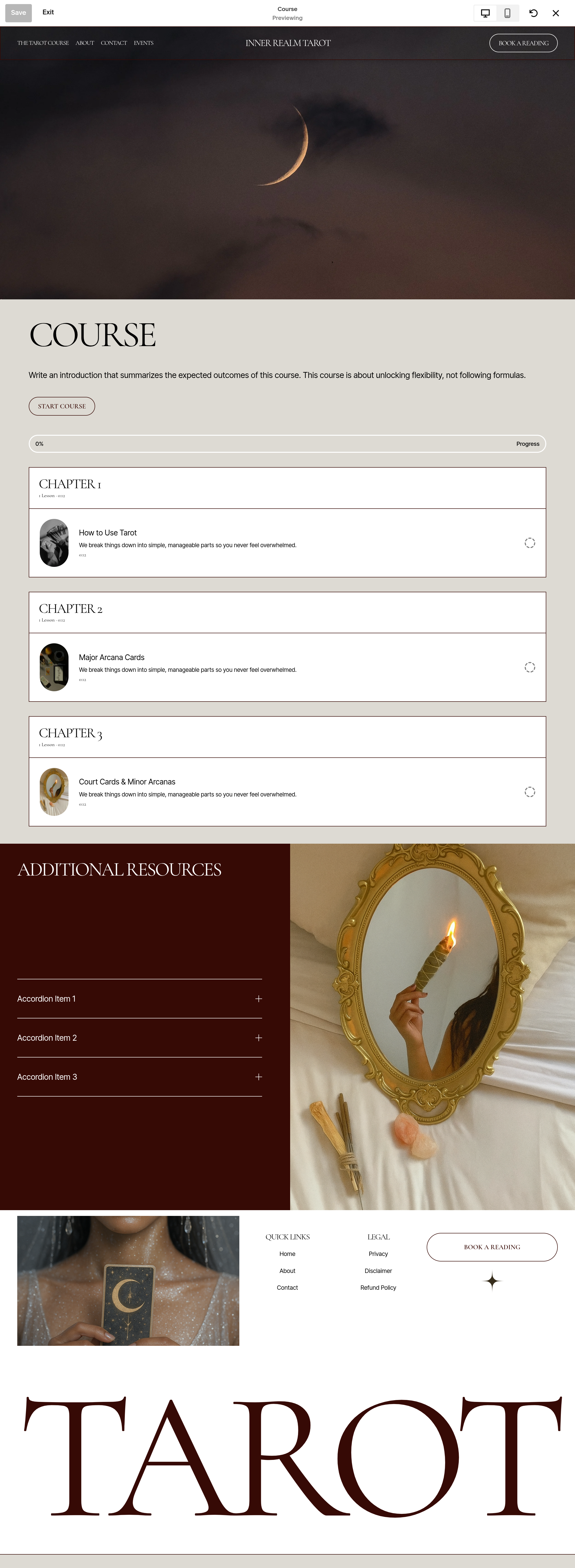
This template includes a course landing page where it will automatically list all parts of the course. At the very end you are able to add new sections with additional resources.
Hero Image
The first section consists of an image as a background.
Step 1: Replace the hero image
Click at the block and select edit. Then select background to replace or add an image of your own.
You can adjust the sizing by making the first block bigger or smaller
Curriculum Title
You will notice right under the image in the second block is the name of your course. You can edit here directly or under course settings.
Below the title is a small introduction to the course. Simply click the text box to customize.
Additional Resources
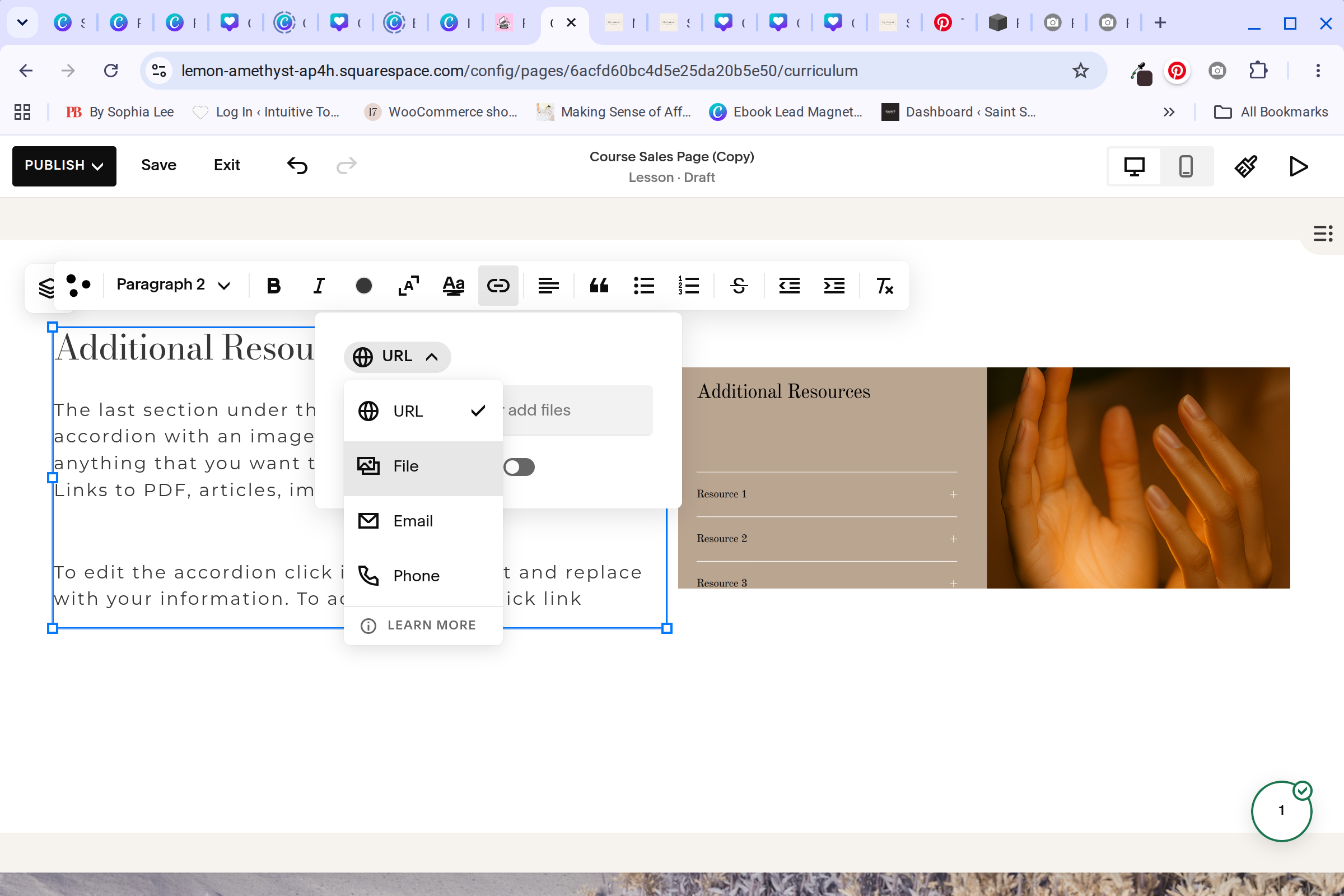
The last section under the course material is an accordion with an image. This space can be utilize for anything that you want to share with your members. Links to PDF, articles, images, workbooks.
To edit the accordion click into the content and replace with your information. To add a PDF file,
Highlight a word or phrase
Click the link,
Then at the top, change the URL to File.
Lastly, click the image to replace with your own.