Booking Page
IN THIS LESSON
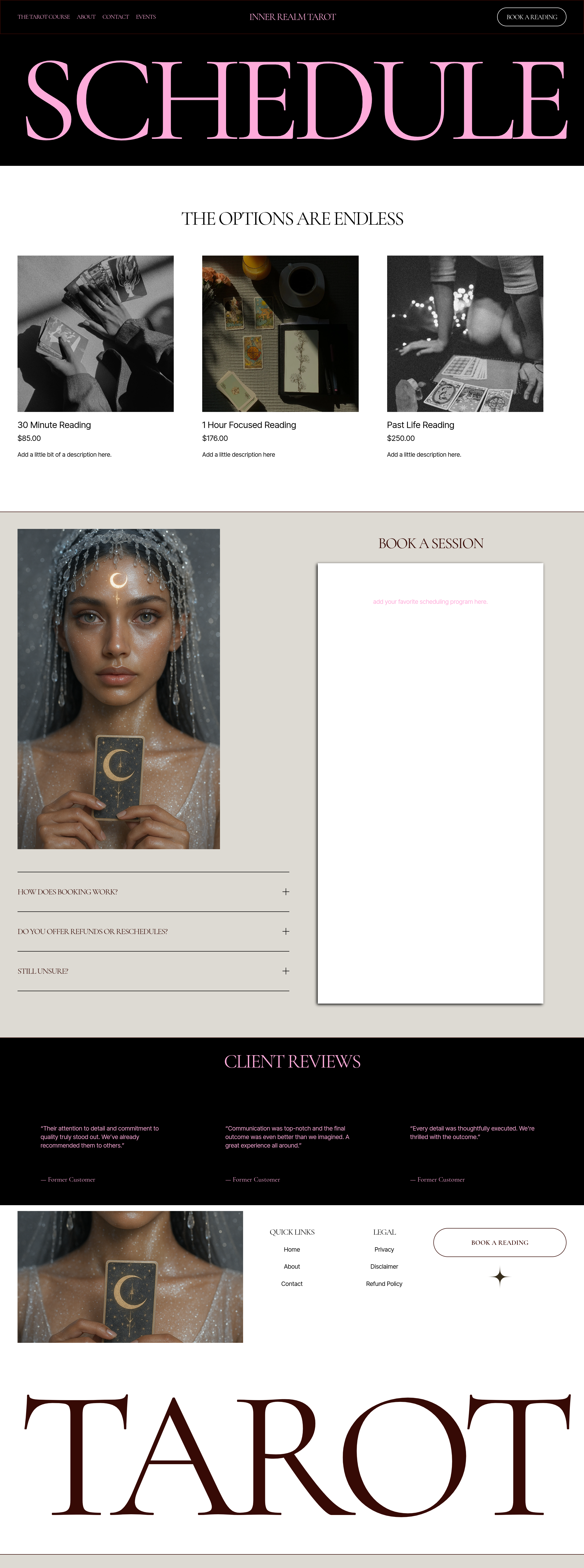
Let’s go over your booking page
If your business offers appointments, memberships, or other ways for clients to work with you, this page is where you can bring everything together in one place.
This template includes several different sections designed to guide visitors toward booking an appointment, learning more about your events, and exploring your membership options.
There are also two features on this page that have their own setup processes: Acuity Scheduling and monthly memberships. We'll have separate tutorials dedicated to setting up each of these, so I'll leave those steps out of this tutorial and link you to them when you're ready.
For now, let's focus on customizing the page itself.
Replace the Intro
The first section of the page uses a large text to welcome guests in.
Click edit the textbox.
Edit with what you desire
Feel free to change the colors or add an image to the background.
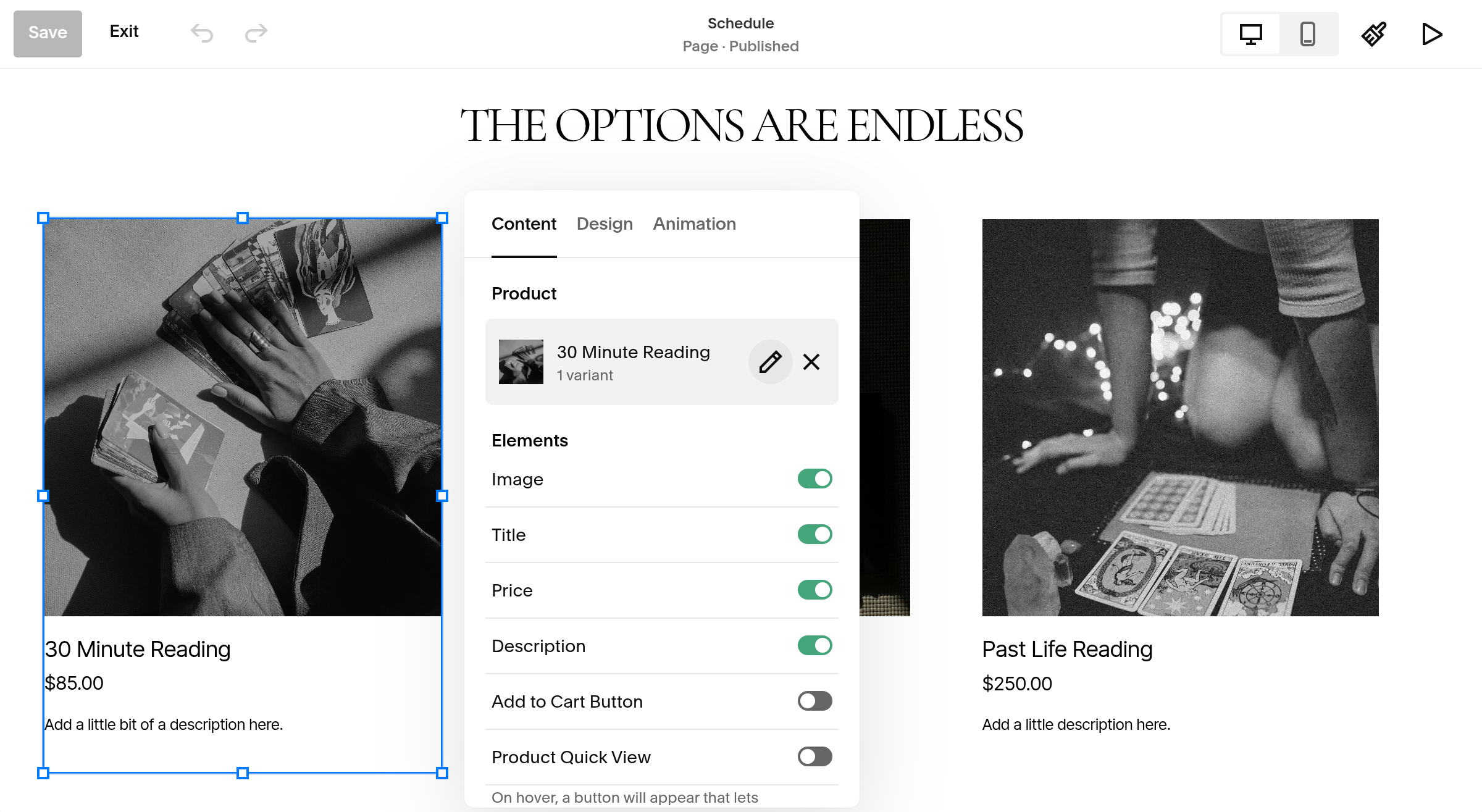
The Options Are Endless
The next section is showcasing offers you have in your shop. If you rather using a scheduler, I would recommend deleting this section or changing it into a breakdown of your offers without the ability to purchase. If you prefer your clients to purchase and scheduled via email this is an amazing free alternative to a scheduler.
Click on the product to edit
The first section will showcase what elements you want to toggle on or off.
If you click on the pencil icon under product, it will lead to editing the offer with one of your own. below is a tutorial on how to add products and services into your shop!
Customize Your Booking Section
Next, you'll find the Book an Appointment section.
Start by replacing the heading with your own wording. You might keep it simple with Book an Appointment.
Or make it feel a little more personal:
Let's Get You Booked
Ready to Get Started?
Your Next Appointment Starts Here
Whatever fits your brand.
Next is your Acuity or another type of booking system. I’ve created an entire article on how to setup booking (linked below) but for now, feel free to arrange the placement. You can drag it to the side and add an image, make it smaller, or leave it as is!