Events Page
IN THIS LESSON
Let’s go over your events page
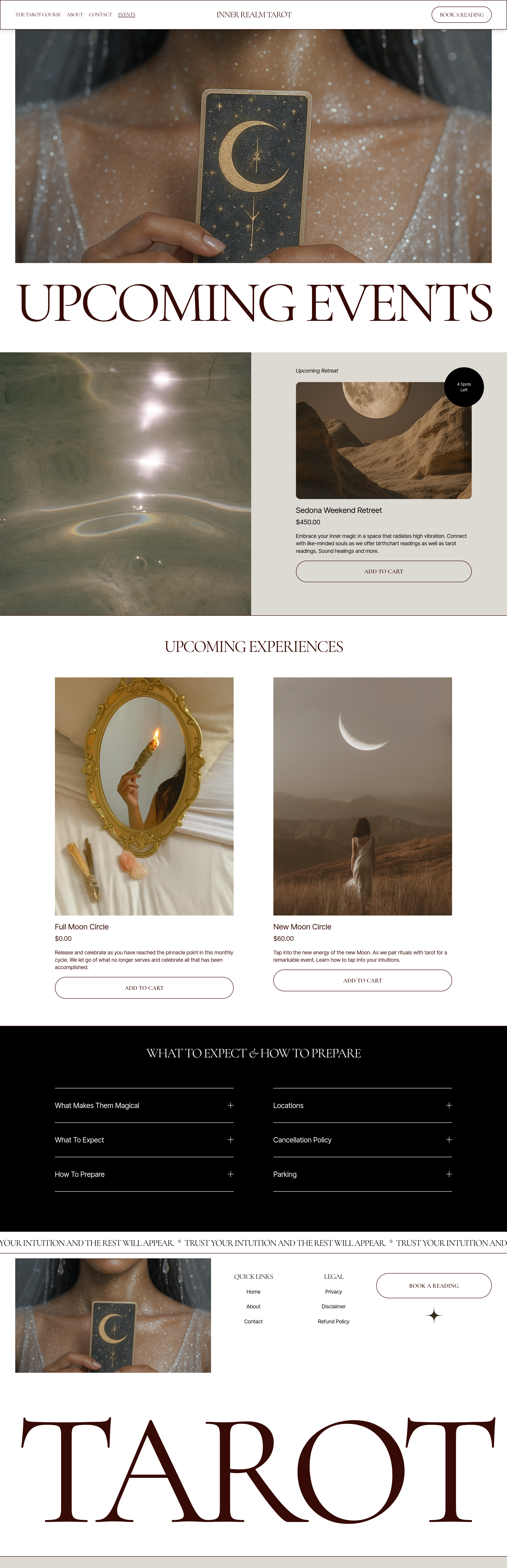
This template includes an events page that can either be free or paid gatherings. There are two parts of creating an events page. The first is the landing page that hosts all events. The second is editing the individual events listed.
Hero Image + Title
The first section consists of an image.
Step 1: Replace the hero image
Click at the block and select edit. Then select background and replace or add in an image of your own.
Step 2: Edit Title
Feel free to click on the heading title and change it to fit your brand.
Featured Event
The next section highlights a featured event. To edit:
Click the image on the left to replace with your own
Click the small title to replace with what is best for your event
Click the product and replace with one of your upcoming events
Click the badge to edit the shape or color
Click the text on the badge to edit with a short text that applies to your event!
Upcoming Experience
The following section highlights a upcoming event. To edit:
Click the heading to edit to fit your events page
Click on both events and then click edit to select a product or service that you have created.
We will go over how to add your own events as a service.
FAQs & Scrolling Banner
The last section is your FAQ area. This is an accordion-style section, meaning visitors can click on each question to reveal the answer.
Click into each question and replace the template questions with ones your actual customers frequently ask.
Then replace each answer with your own information.
Directly below the accordion is a scrolling banner. Feel free to click directly onto the banner, select edit in order to change the wording.