Header & Footer Setup

IN THIS LESSON
I’ll go through how to adjust and edit your site header.
From adding, removing elements and adjusting the size. Let’s begin with the desktop version. Head over to the canvas setting header for the desktop to begin.
Editing The Icons
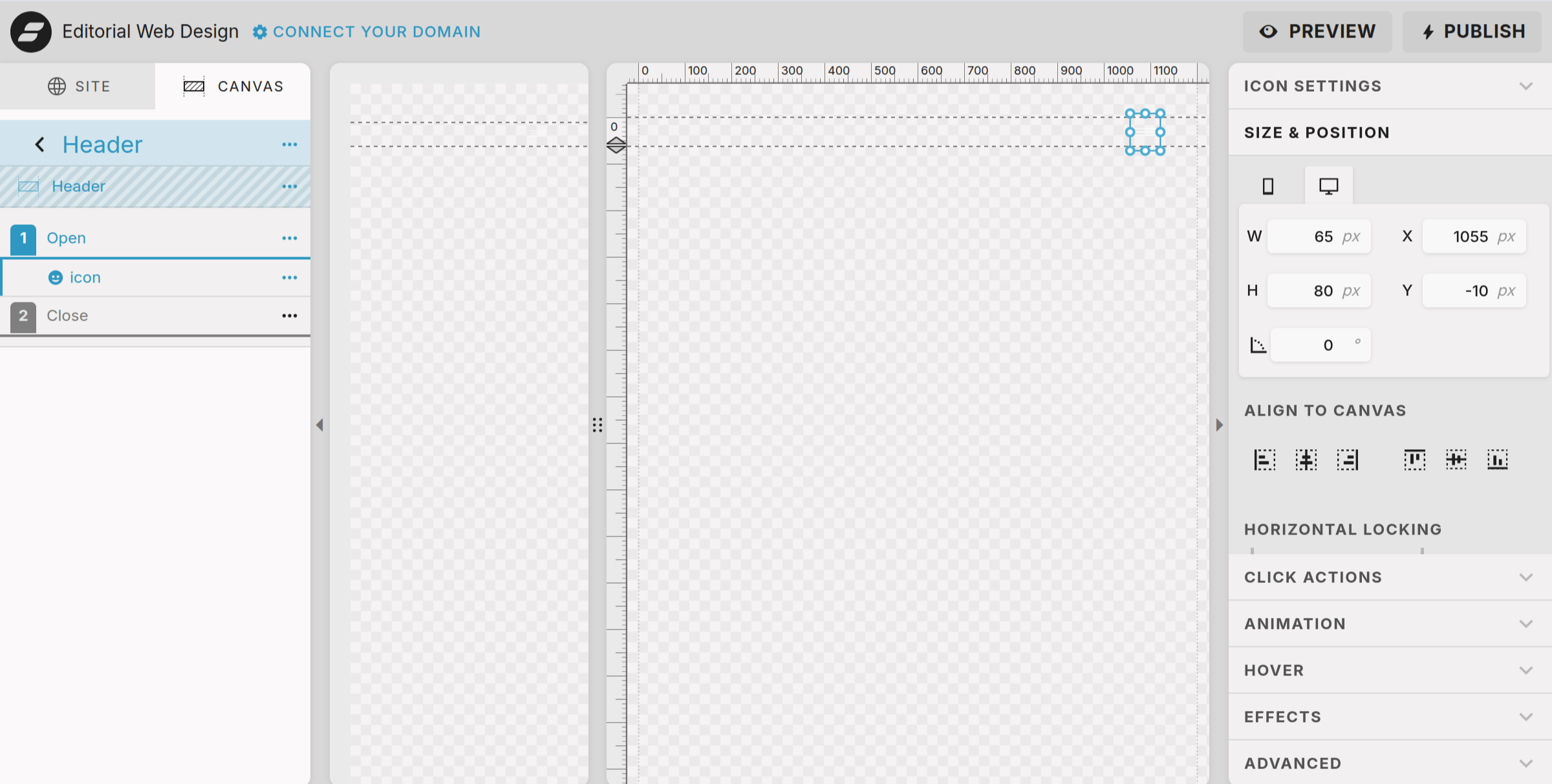
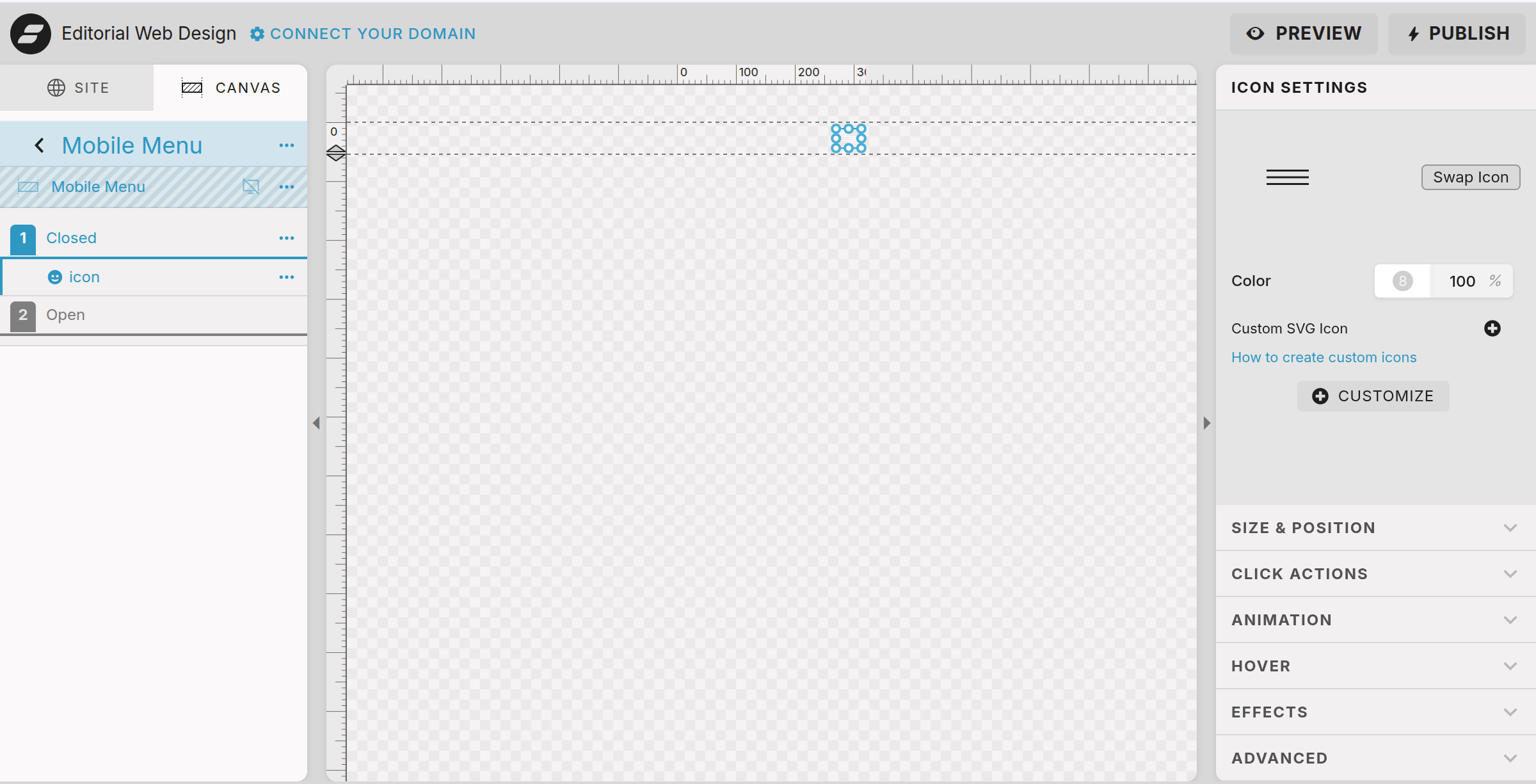
Your initial screen will look like there is nothing in the header. That’s because the background is transparent and the icon color is white.
If you wish to edit the icon:
select the icon
select swap icon for a different style
choose a different color if desired
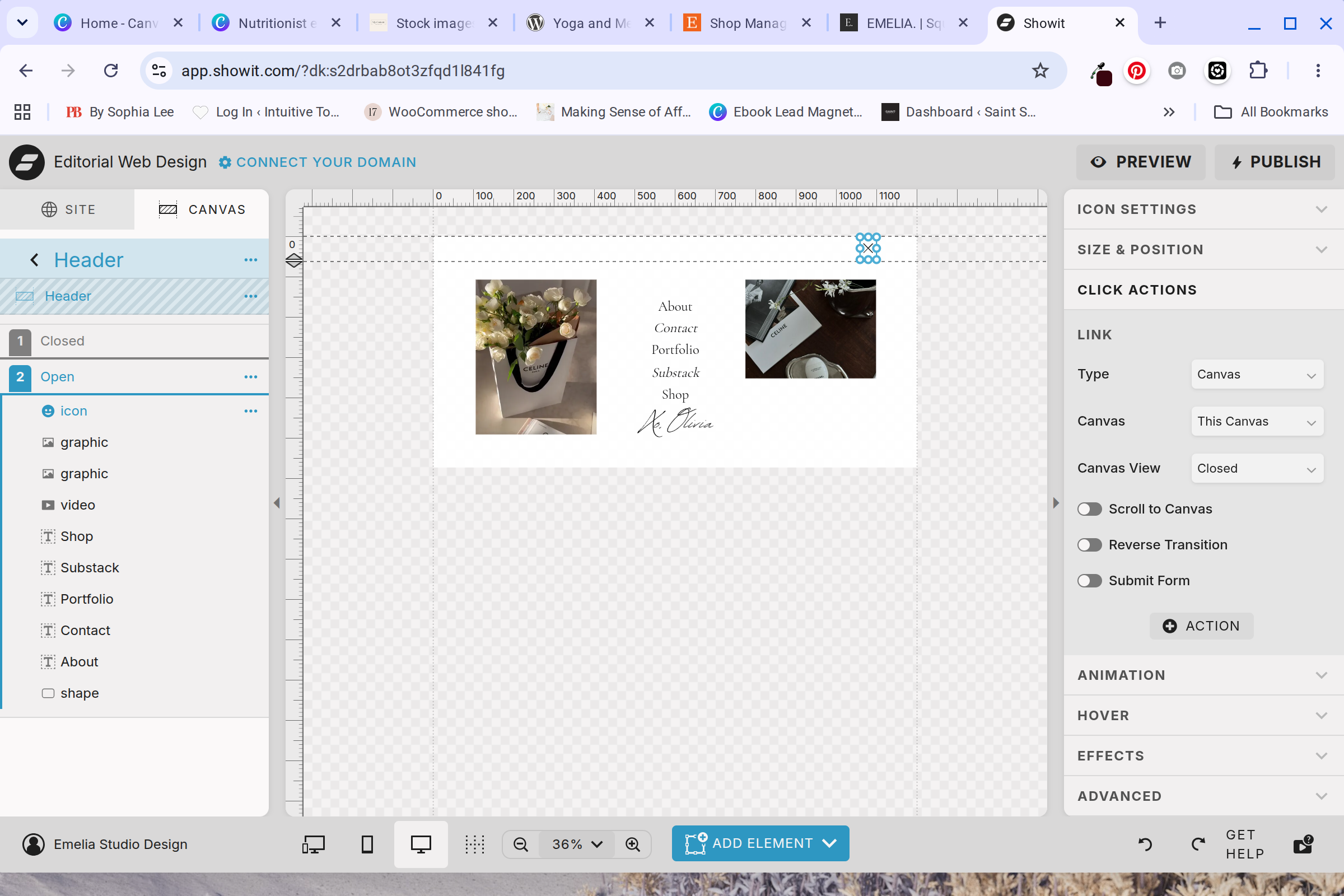
If you remove the icon, make sure the click action settings look like the one to the side. The first icon should point to open, and the second icon should point to close.
Editing The Desktop Menu
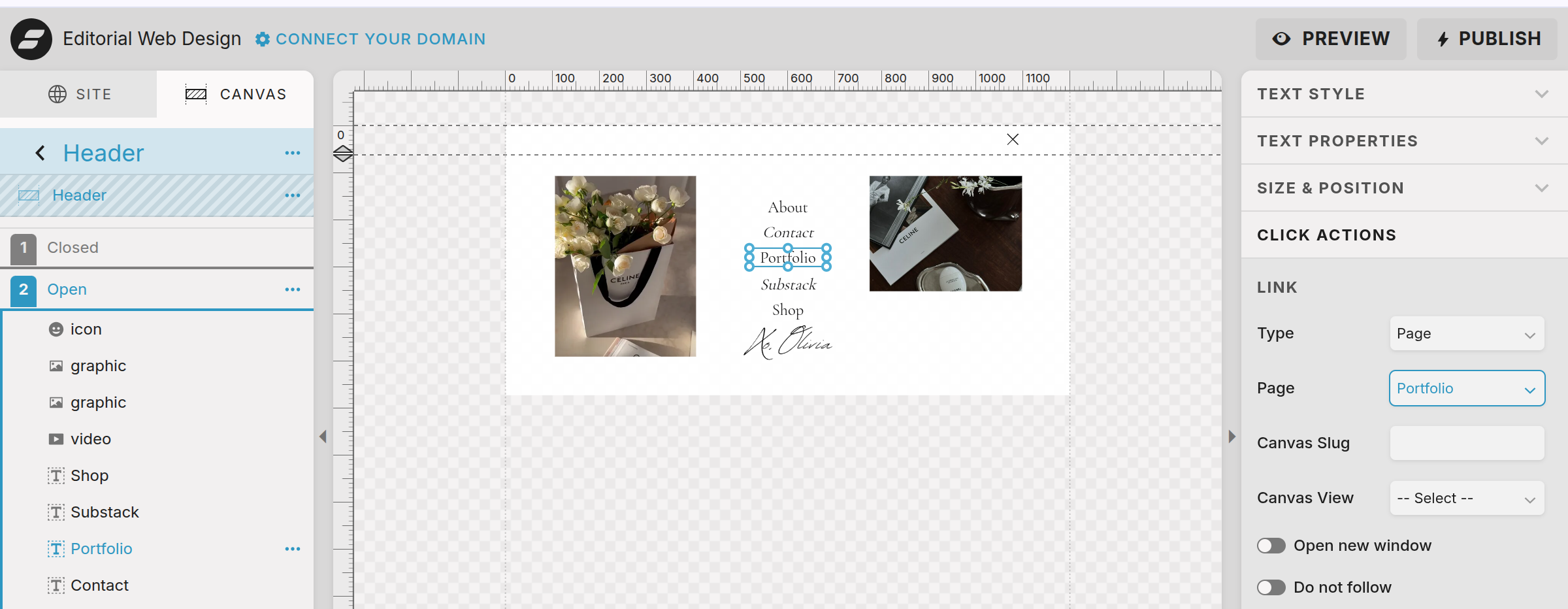
When you click into the open tab, you will see a white backdrop with a list of pages, one image, one video and a signature. Let’s edit each:
Select the background to adjust the color and transparency
Select the right hand image to replace with your own
Select the video to replace with your own
Select the signature and swap with your own. You can access your Canva Assets which includes the signature using the button!
Change the Pages order by dragging the into place.
Change which pages you wish to include by deleting or swapping in a new one. Make sure the click action links to the right page.
Editing Mobile Header
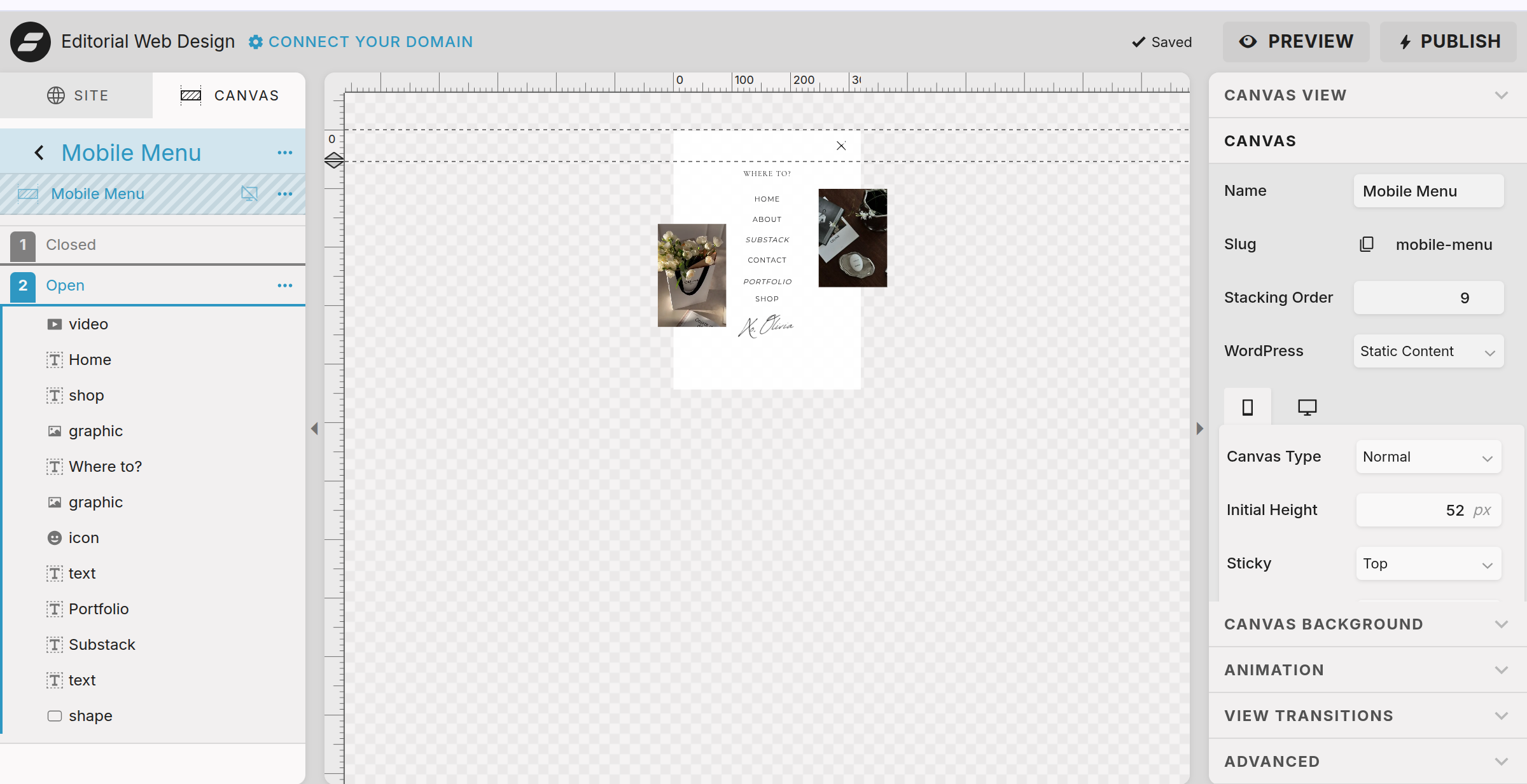
The mobile header is a completely different Canva site, so really quickly go back to the home page and then click on mobile menu.
Next, click on the mobile view point at the bottom of the screen.
Editing this is exactly the same as editing the desktop version. So feel free to move through the same steps as mentioned earlier!