Portfolio Pages

IN THIS LESSON
Let’s go over your Portfolio Page
Your portfolio page is where visitors can get a look at your work, collaboration, and stats.
The Top Image Section
At the top of the page, you'll see a large image with your name and subtitle
Step 1: Replace the Image
Click on the image and replace the template photos with your own.
Step E: Replace the name with your own
Click the text boxes and replace with your brand information.
Bold Text and Subtext
The next section is a massive heading paired with smaller text and a single image. Just as before, click on the text to edit. In the right hand panel you can adjust sizing as well as font. Replace the image with one of your own that fits your branding!
Client List
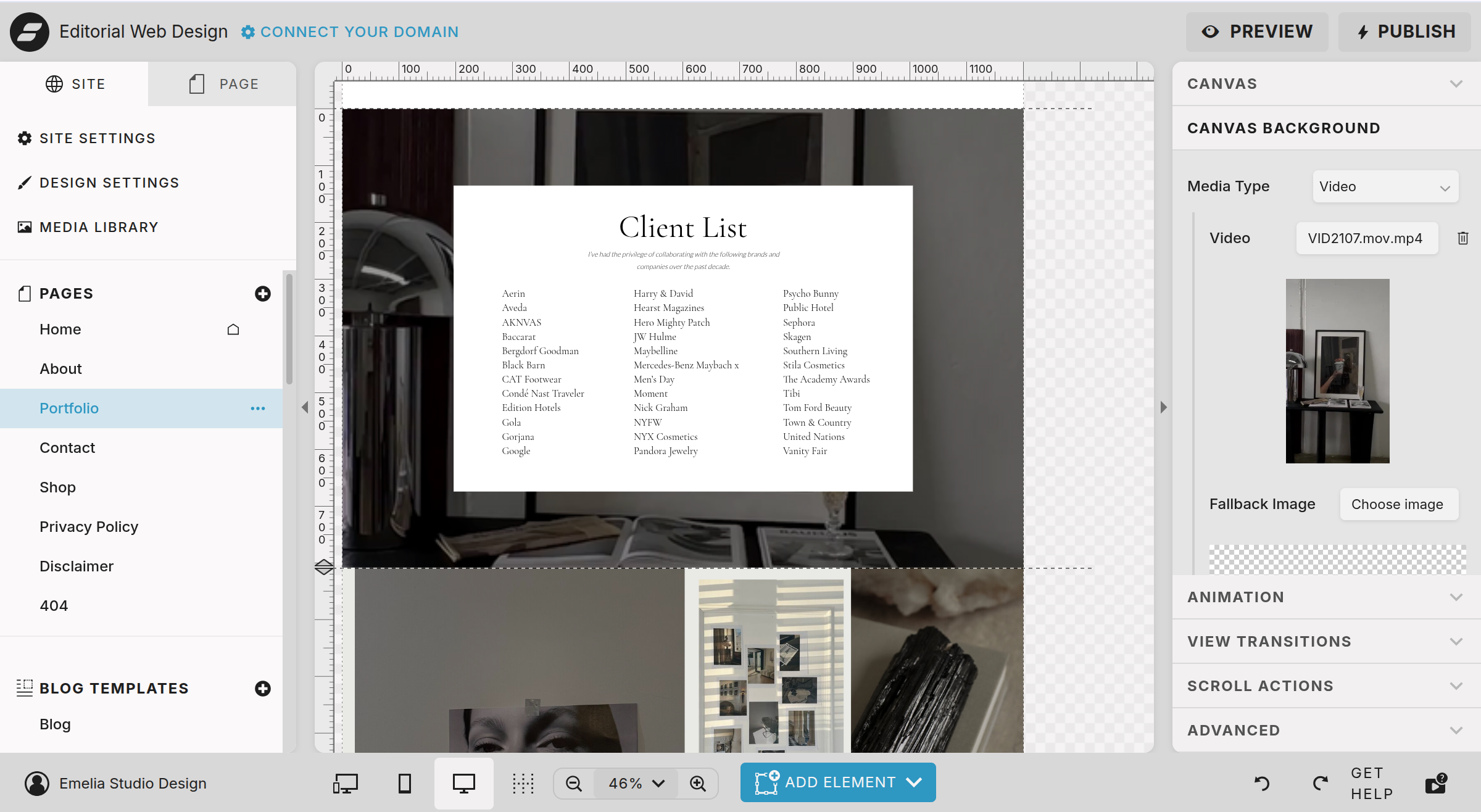
This section highlights who you have worked with in alphabetical order.
Step 1: Replace the background video
Click the background to replace.
Step 2: Edit the list
Add your client list to the template. If you are just starting, remember you can hide this section in the left hand panel until you are ready to use.
Portfolio Collage
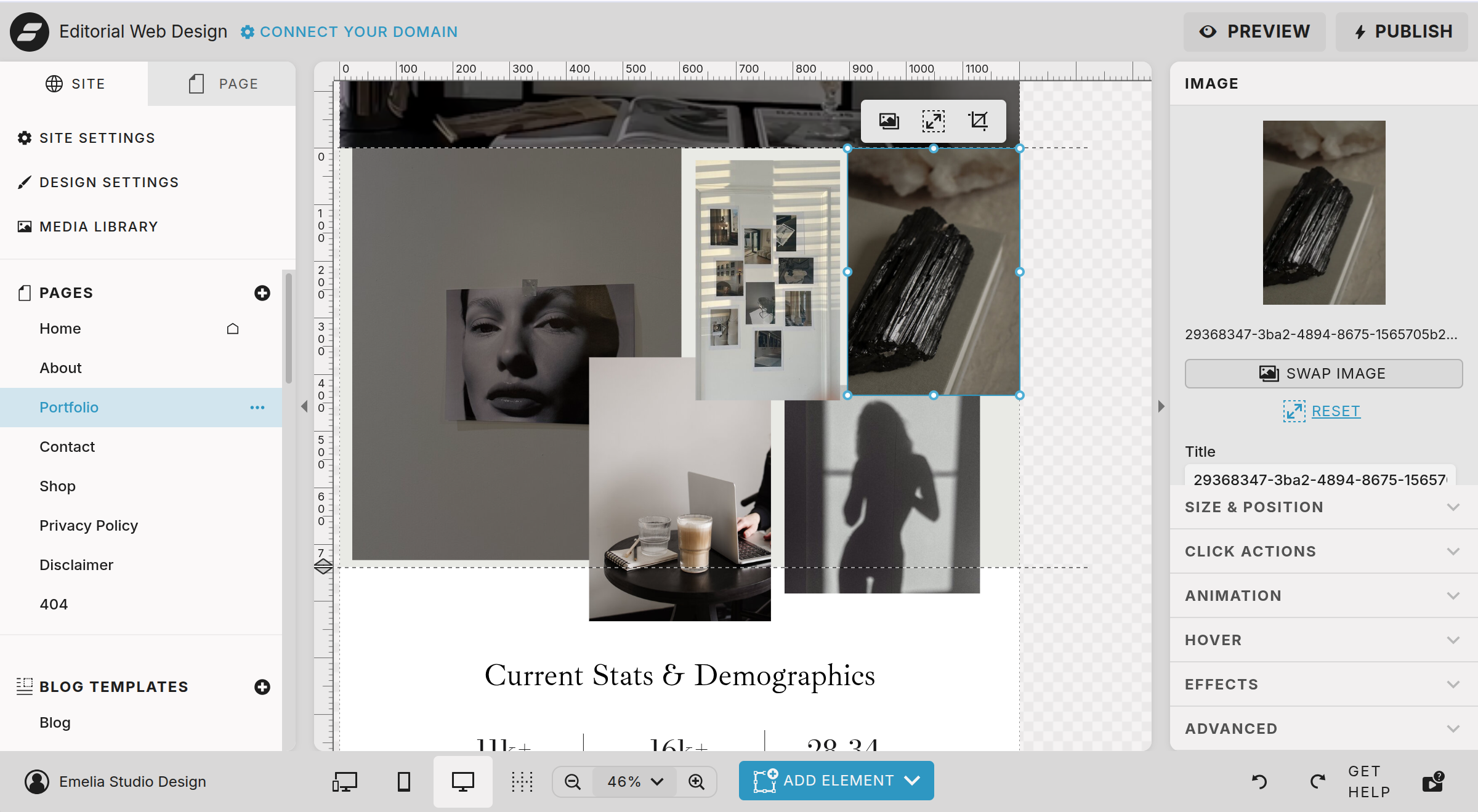
The collage is a way to showcase any past campaign, work, or your aesthetic so brands understand what type of work you will produce.
Click on each image to replace. Feel free to play around with this section to make it aesthetically your own.
Demographics and Stats
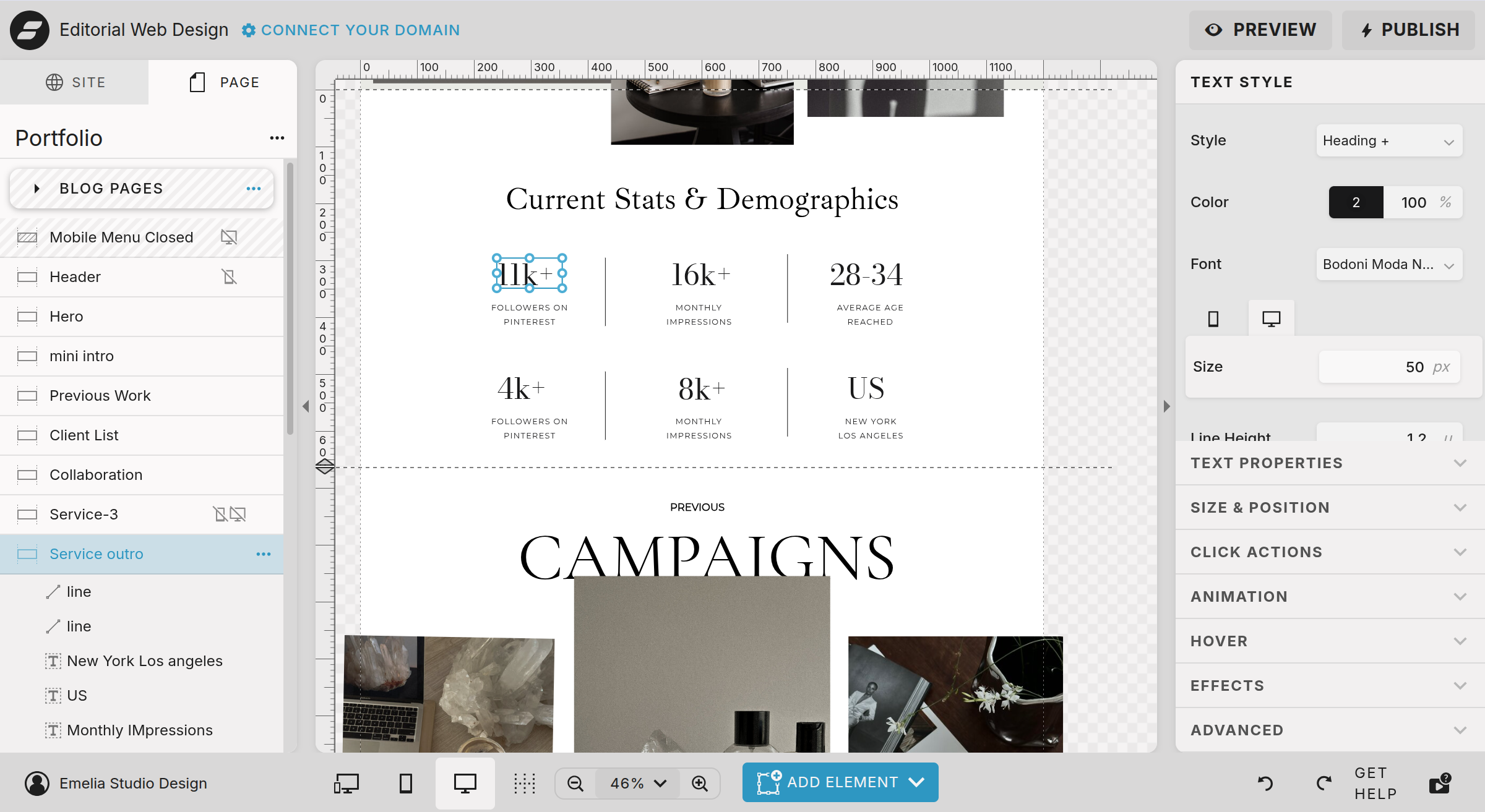
This is an amazing way to share your numbers in an aesthetic way to brands or potential clients.
Step 1: Replace the Text
Simply click each text box to add your stats and demographics. You can change fonts and colors using the right hand panel.
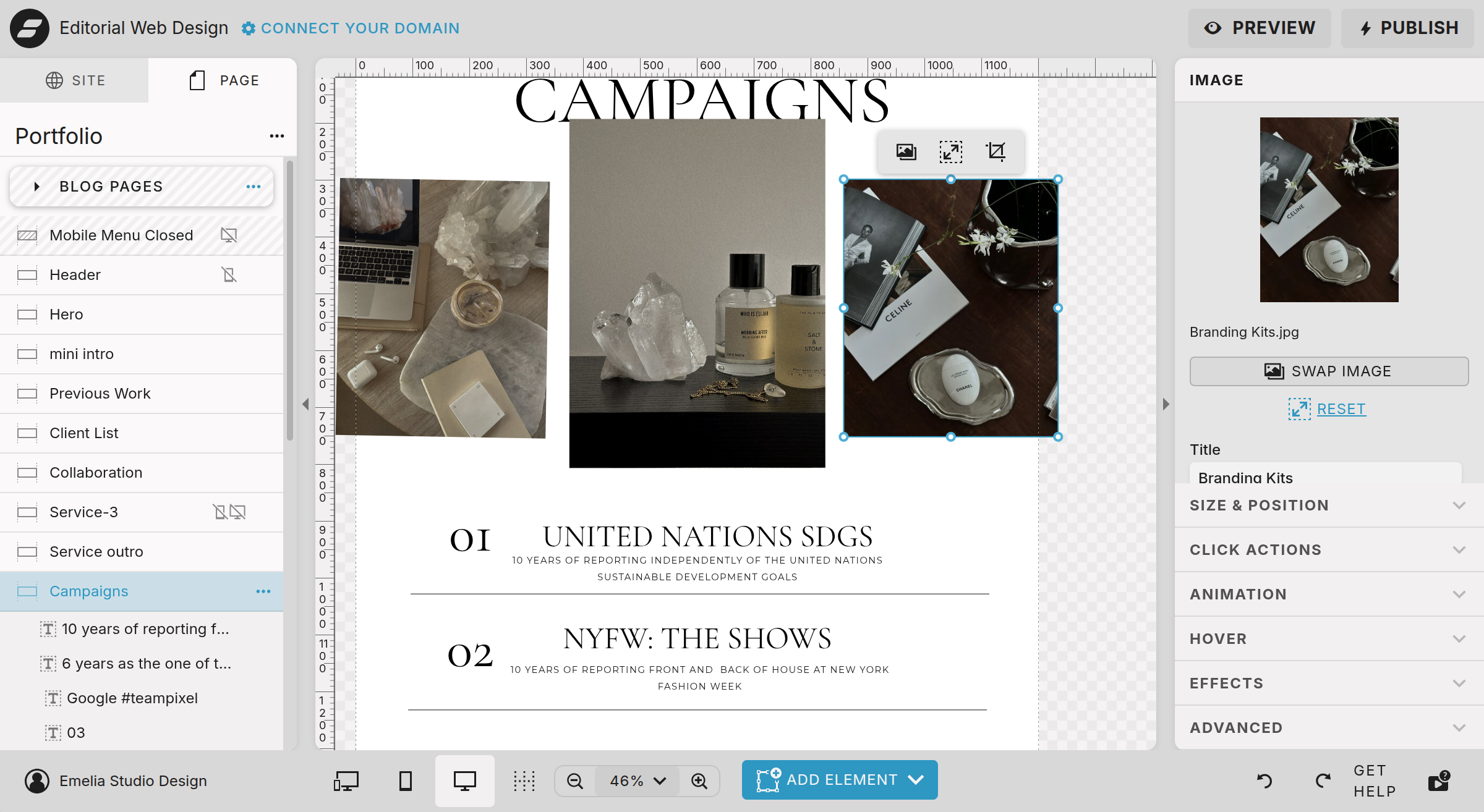
Previous Campaigns
Next section is a great place to highlight the most recent campaigns and stats.
Step 1: Replace the Text
Simply click each text box to add your stats and demographics. You can change fonts and colors using the right hand panel.
Step 2: Replace the Images
Click on each of the three images to swap with your own!
Area of Expertise
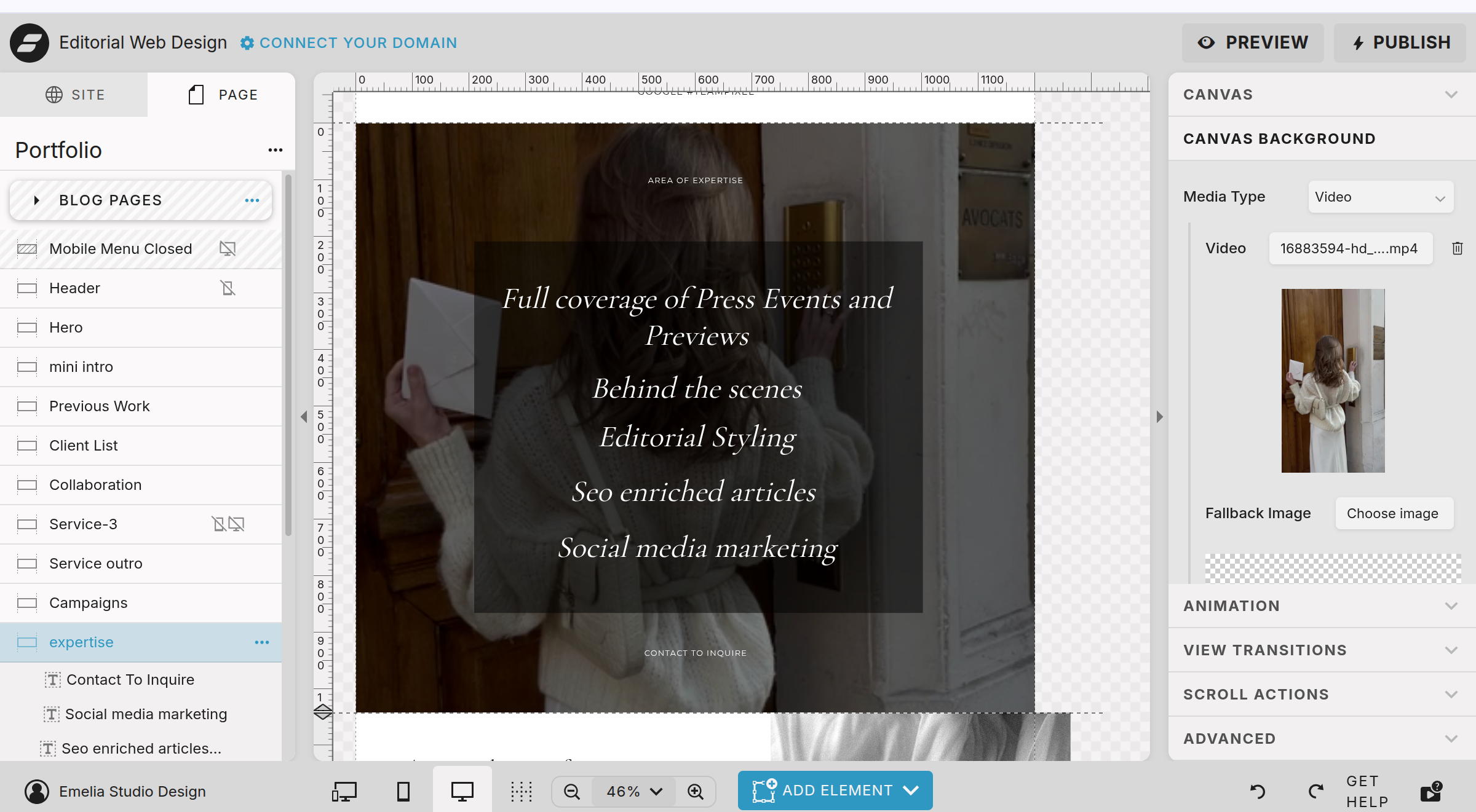
This section is a great place to highlight your skillset
Step 1: Replace the Text
Simply click each text box to add your stats and demographics. You can change fonts and colors using the right hand panel.
Step 2: Replace the Video
Click on the background to replace the video or swap it for an image instead.
Last Pitch
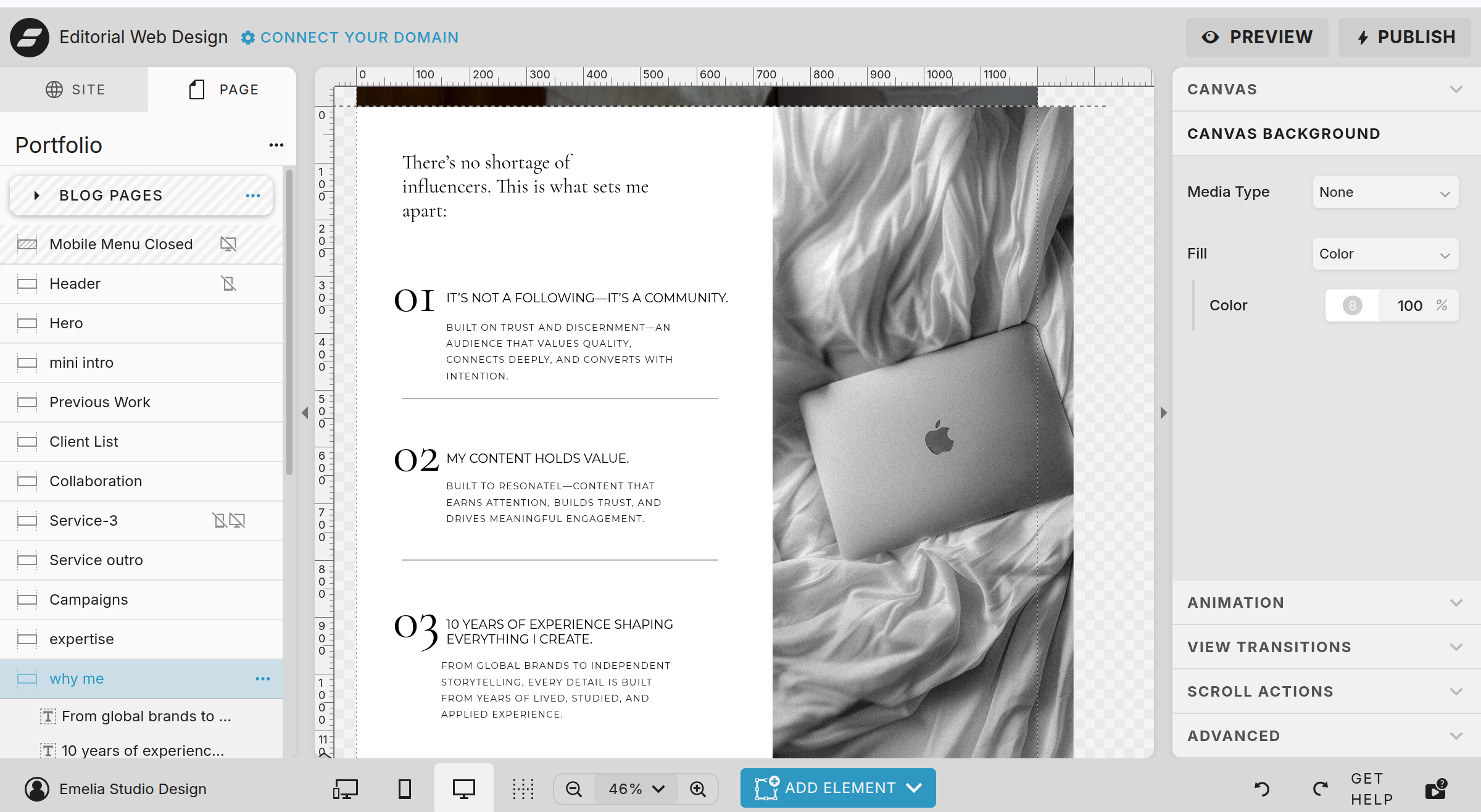
The very last part of this page is one last pitch to your potential clients on why you are different from the rest.
Step 1: Replace the Text
Simply click each text box to add your stats and demographics. You can change fonts and colors using the right hand panel.
Step 2: Replace the Image
Click on the image to replace.