Header & Footer Setup

IN THIS LESSON
Editing Your Footer
From adding, removing elements and adjusting the size. The good news is the mobile and desktop version is the same site canvas, so you only need to edit once!
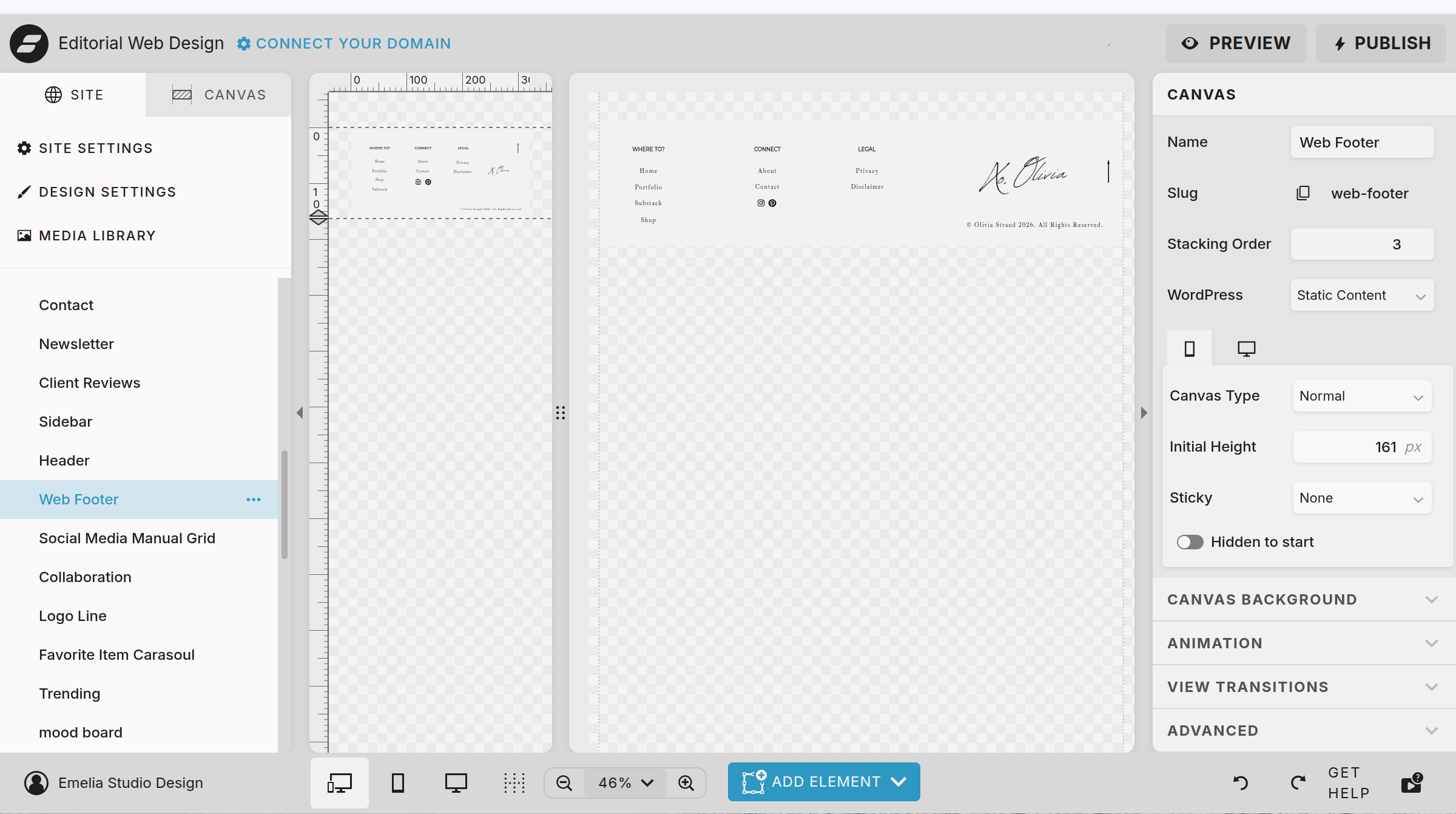
To begin, find the Web Footer site canvas. Open that up and either click into the mobile or desktop view to edit.
Editing Your Footer
Very similar to how you will edit most of your template, there are a plethora of options to customize your footer.
To begin, head to the canvas background to adjust the color to one that fits your branding.
Next, let’s replace the signature with your own by simply swapping the image out. Your signature should be loaded in from editing the header.
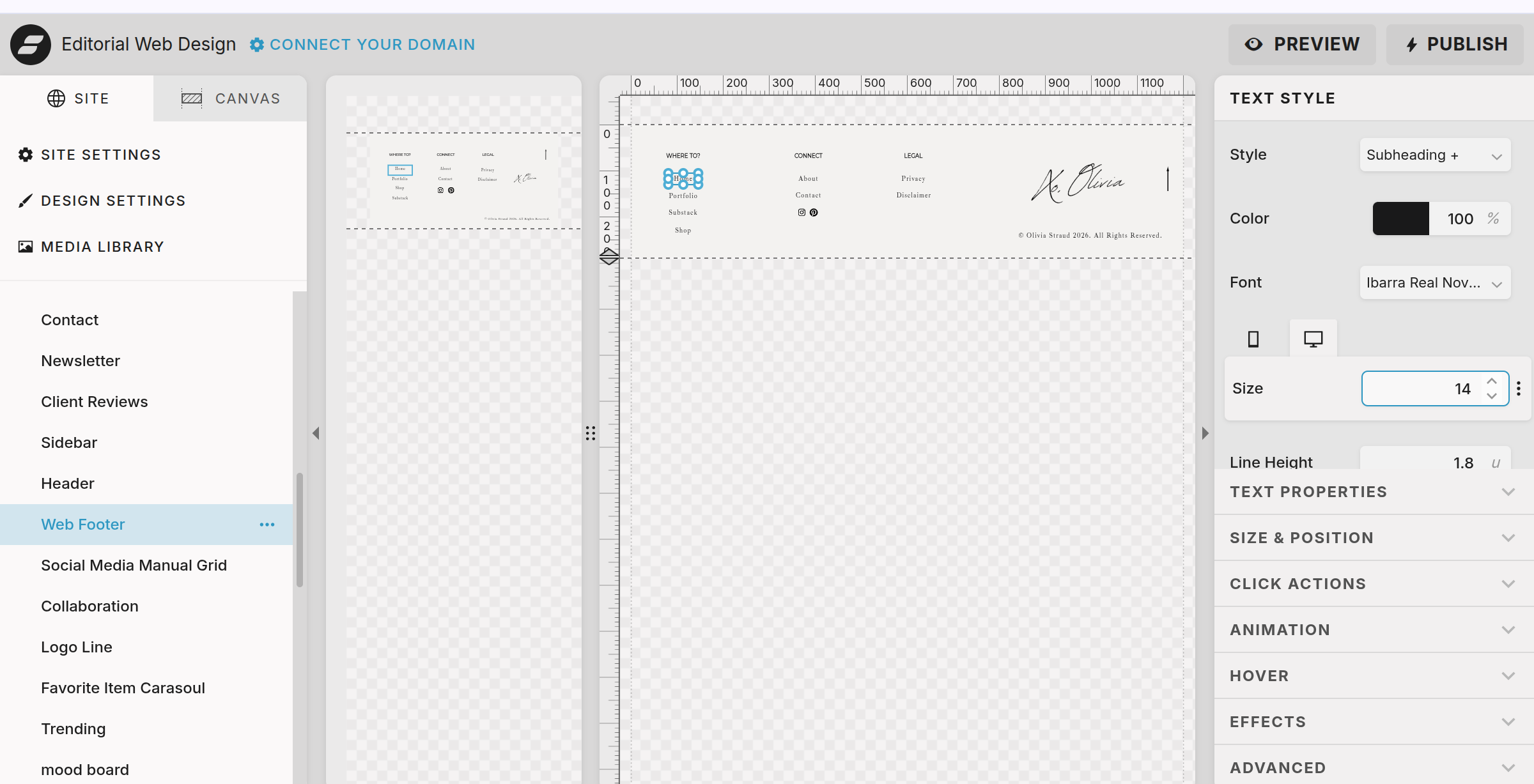
Every page is already linked for you, if you want to change the sizing or font, click on the textbox and edit under text style. If you are changing the page name make sure you redirect the click like action to point to the appropriate page!
Next, simply change the copyright text to include your name or brand name.
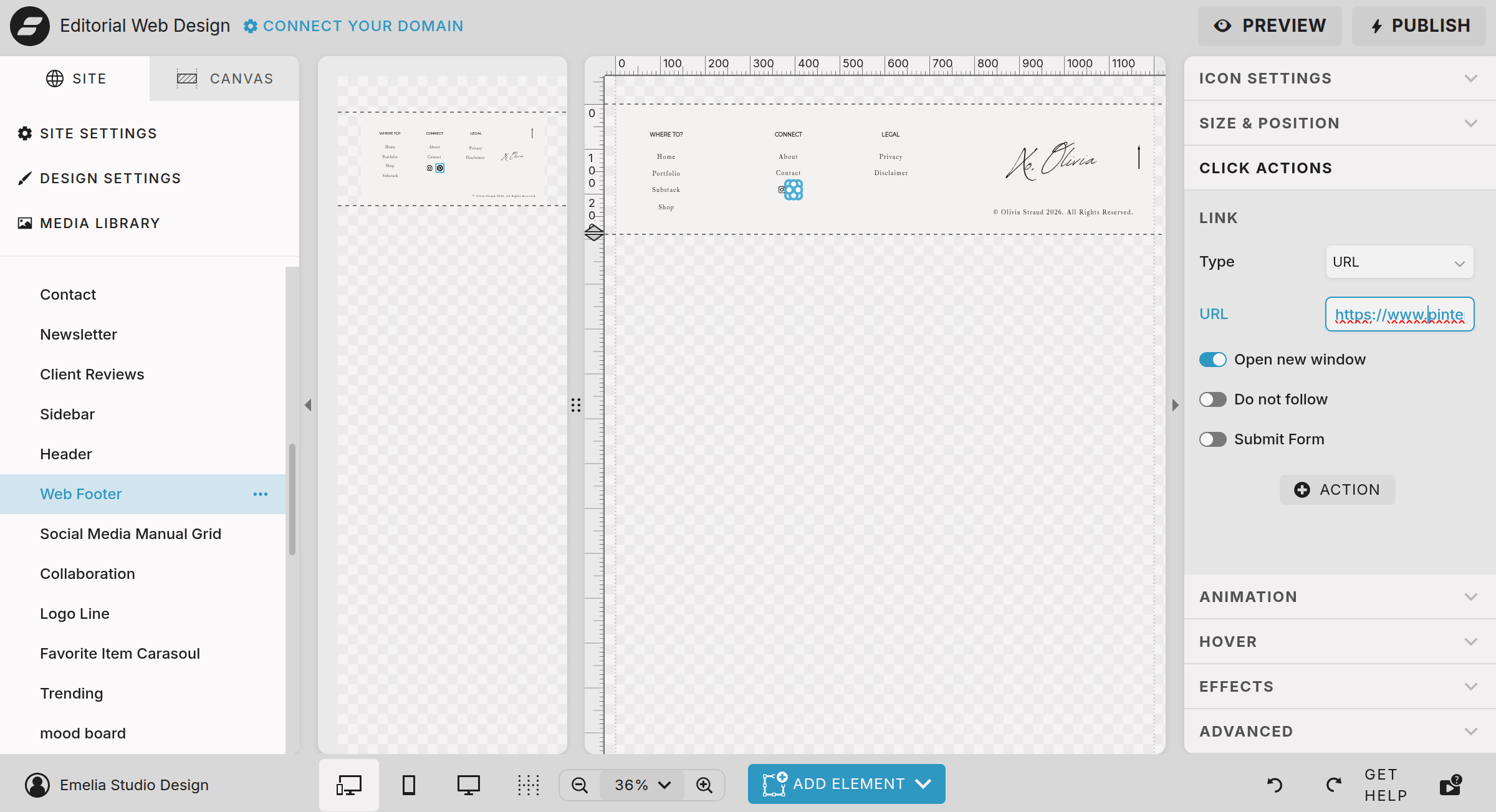
Lastly, click the social media icons to add your social media links under click action.
There you have it! Your footer is complete. Check the mobile view to make sure any adjustments didn’t disrupt the flow in the compacted version as well. See you in the next step!